

POS Screen Extension Tools
The POS Screen Extension Tools provide a specialized framework for extending the Odoo Point of Sale (POS) interface. This utility automates the generation of complex OWL components required for POS customization, ensuring framework compliance and seamless asset registration.
How to Use
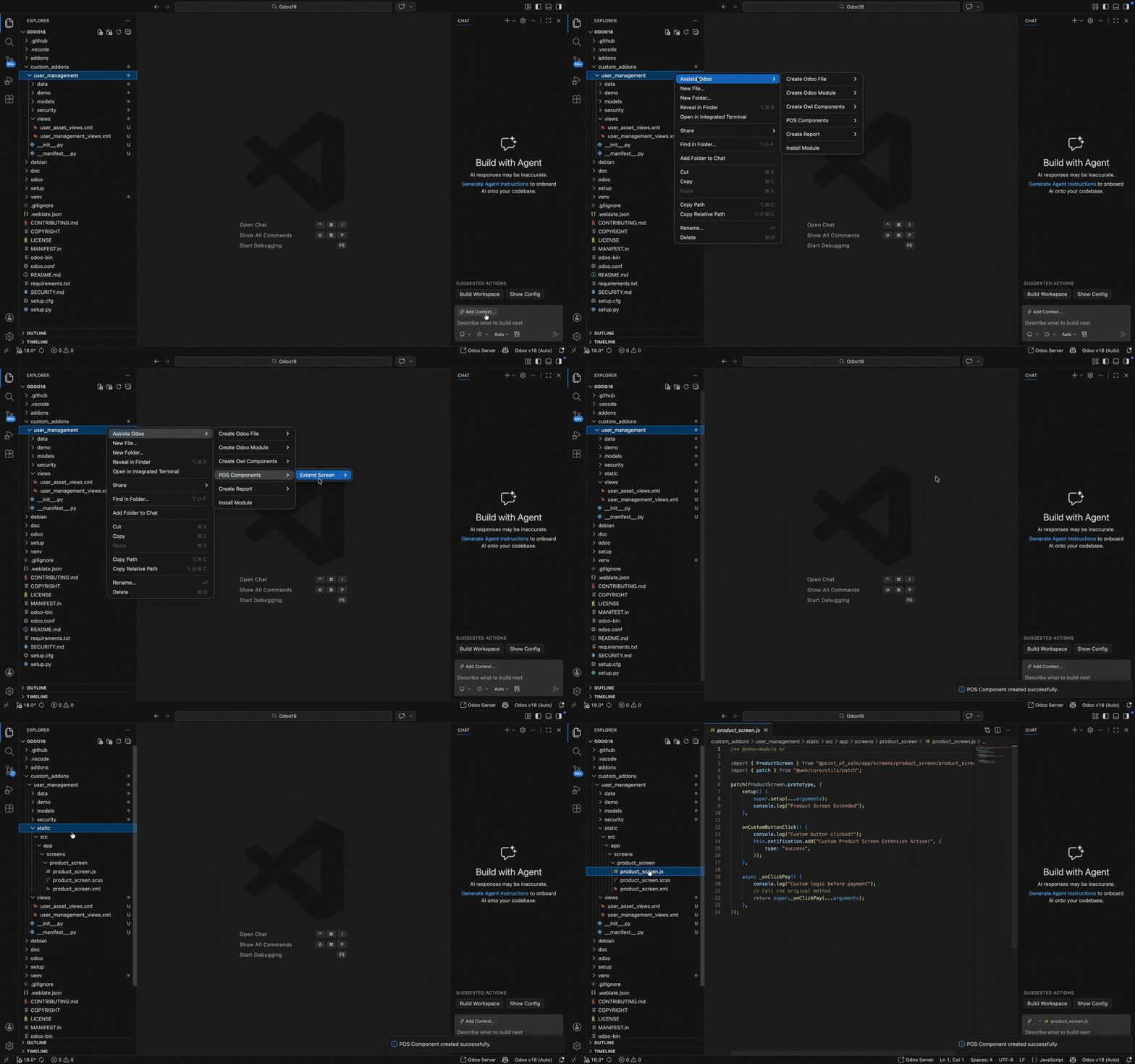
To extend a POS screen:
- Right-click on a valid Odoo module directory in the VS Code explorer.
- Select Assista Odoo -> POS Components -> Extend Screen.
- Choose the target screen from the available POS Screen Templates.
System Automation
Upon selection, the plugin performs the following automated tasks:
- File Generation: Creates a synchronized set of
.js,.xml, and.scssfiles. - Boilerplate Injection: Injects ready-to-use sample content, such as functional buttons or container elements, into the selected screen.
- Manifest Registration: Automatically adds the new files to the
point_of_sale.assetsbundle in__manifest__.py. - Dependency Resolution: Scans the
__manifest__.pyand adds'point_of_sale'to thedependslist if it is not already present.
Technical Structure (All Screens):
module_root/
└── static/
    └── src/
        └── app/
            └── screens/
                └── screen_name/
                    ├── screen_name.js
                    ├── screen_name.xml
                    └── screen_name.scss
Supported POS Screen Templates
The extension provides dedicated scaffolds for the primary functional areas of the Odoo POS:
1. Product Screen
Customizes the main sales interface where products are selected.
- Purpose: Adding custom product filters, action buttons, or information panels to the primary sales view.
2. Partner List Screen
Extends the customer selection and management interface.
- Purpose: Enhancing customer search logic or adding custom fields to the partner selection form within POS.
3. Payment Screen
Modifies the checkout and payment processing interface.
- Purpose: Integrating custom payment provider UI elements or adding validation logic before finalizing orders.
4. Receipt Screen
Customizes the post-checkout order confirmation and receipt view.
- Purpose: Adding custom branding, QR codes, or promotional data to the printed and digital receipts.
5. Order Management Screen
Extends the historical order lookup and management interface.
- Purpose: Implementing custom order filtration or adding specific management actions for existing orders.
For technical specifications on the POS architecture, refer to the Odoo POS Framework Guide.
*For technical specifications