

How to Add Custom Modules
Easy Instance provides a flexible way to add custom Odoo modules by pushing them directly to your instance's repository. This guide walks you through the developer-focused workflow of adding modules via Git.
1. Prerequisites
Before you begin, ensure the following:
- You have enabled "Include custom addons support" in your instance settings.
- You have Git installed on your local machine.
2. Clone Your Repository
First, you need to have a local copy of your instance's repository.
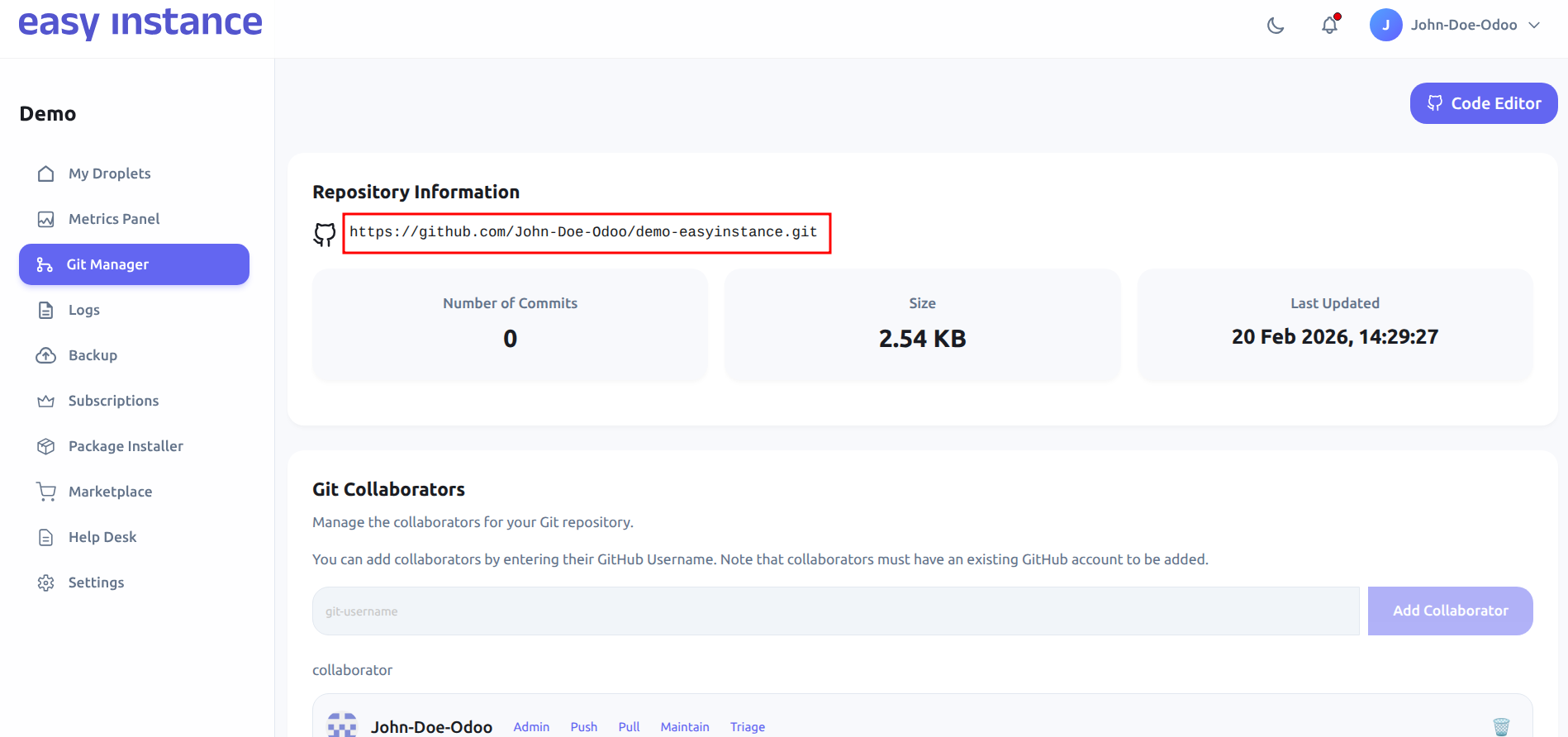
- Navigate to your Easy Instance dashboard.
- In the Git Manager section, copy the Repository URL.
- Open your terminal and run the clone command:bash
git clone [your-repository-url]
cd [repository-folder]
3. Add Your Custom Modules
Simply copy your module folders into the root of your cloned repository.
- Locate your custom Odoo module (ensure it contains a
__manifest__.pyfile). - Move or copy the module folder into your local repository directory.
- Example structure:text
my-instance-repo/
├── my_custom_addon/
└── ...
4. Push Changes to Easy Instance
Use standard Git commands to upload your modules to the server.
- Add the files:bash
git add . - Commit your changes:bash
git commit -m "Add custom module: [module_name]" - Push to the server:bash
git push
Note: Easy Instance will automatically detect the new files and make them available to your Odoo environment.
5. Install the Module in Odoo
Once the push is successful, you must activate the module within the Odoo interface.
Enable Developer Mode
- Login to your Odoo instance.
- Navigate to Settings.
- Scroll to the bottom and click Activate the developer mode.
Update Apps List
- Navigate to the Apps menu.
- In the top navigation bar, click Update Apps List.
- Click Update in the confirmation dialog.
Final Installation
- In the Apps search bar, remove the default "Apps" filter.
- Search for your module name.
- Click the Activate button to install it.
Tip: For larger modules or multiple addons, Git provides a robust version-controlled way to manage your customizations.