

Odoo Model Tools
The Odoo Model Tools are a set of features that help you build Odoo components quickly. By looking at your Python model, these tools can automatically create the XML views, reports, and security files you need.
How to Use
To use these tools:
- Open your Odoo Python file and place your cursor inside a Model Class (inside the
class YourModel(models.Model):block). - Right-Click -> Assista Odoo -> Odoo Model Tools.
- Pick the tool you want to use from the menu.
View Generator
The View Generator automatically creates the XML code for your Odoo views (like Forms and Lists). You don't have to manually write XML; the tool looks at your Python fields and builds the layout for you.
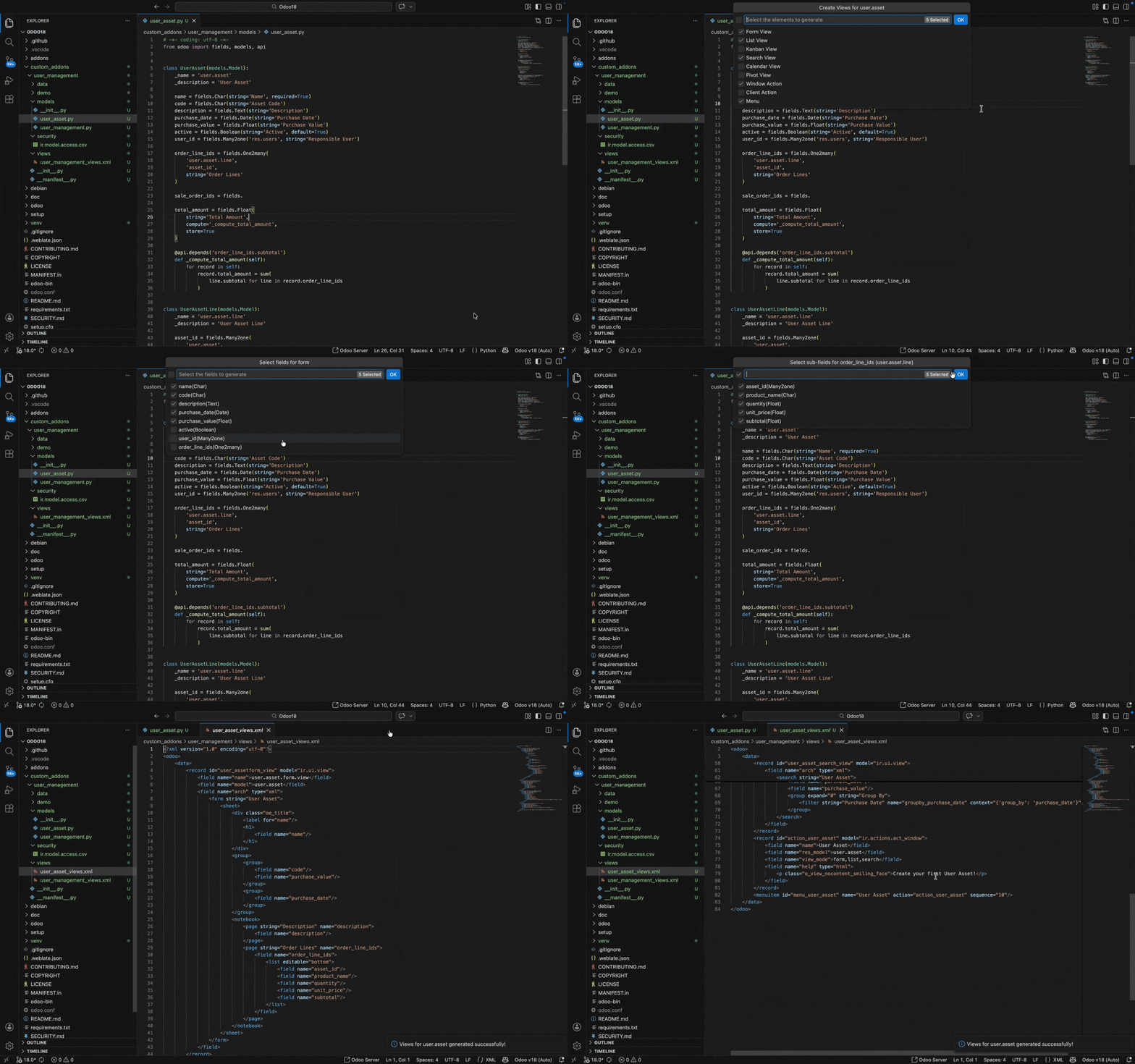
What it does for you:
- Version Aware: It knows the difference between Odoo versions (for example, using
listtags for newer versions andtreetags for older ones). - Smart Widgets: It automatically adds helpful widgets, like
many2many_tagsfor Many2many fields. - Table Creation: It detects
one2manyfields and automatically sets them up as tables inside your form view. - Organized Layout: It places long text or HTML fields into a "Description" tab automatically.
- Manifest Updates: It automatically adds your new XML file to the
__manifest__.pyfile.
How it works:
When you click Create Views, the tool guide you through a multi-step process:
Select Components: A dropdown appears with checkboxes. You can select or unselect which Views you want (Form, List, Kanban, etc.), and whether you want to include a Menu Item and Window Action. Press Enter to proceed.
Choose Creation Mode: Next, you choose how the code should be generated:
Mode Workflow Quick Create Instantly builds the selected views, menu, and action using a standard set of fields randomly selected from your model. Advanced Builder Provides granular control by asking you to pick fields for each view you selected. Refine Fields (Advanced Builder Only):
- Filtered Selection: For each view type, the tool shows a list of fields filtered to only show those supported by that specific view.
- Interactive List: You can select or deselect fields from the interactive dropdown list.
- Relational Tables (One2many): If you select a
one2manyfield for a Form View, the tool will automatically trigger another selection step where you pick exactly which fields from that related model should appear as columns in the table.
Auto Registration: Once finished, the tool generates the XML code, creates the file, and automatically registers the new file in your module's
__manifest__.py.
Report Generator
The Report Generator helps you create PDF or HTML reports for your model without writing complex QWeb code from scratch.
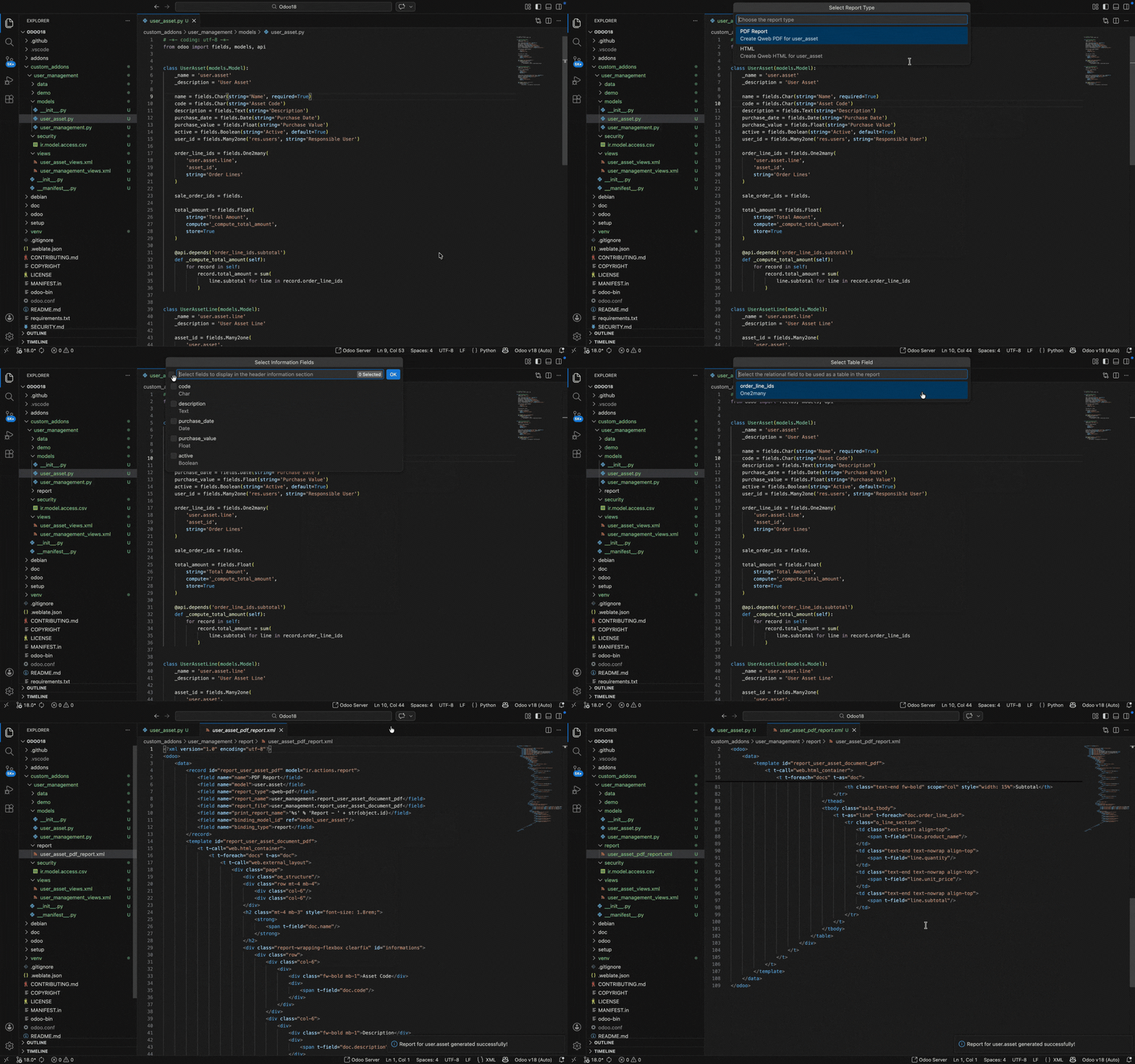
How it works:
When you select Odoo Model Tools -> Create Report, follow these simple steps:
- Choose Format: Pick if you want a PDF or HTML report.
- Pick a Title: Choose one field (like
name) to be the main title of the report. - Choose Information: Select the fields you want to show in the main info section of the report.
- Add a Table: If your model has lines (like order lines), pick which
one2manyfield should be shown as a table. - Auto Registration: The tool creates the files and automatically registers them in your
__manifest__.py.
Create Access Right
Automatically adds security rules for your model in the ir.model.access.csv file.
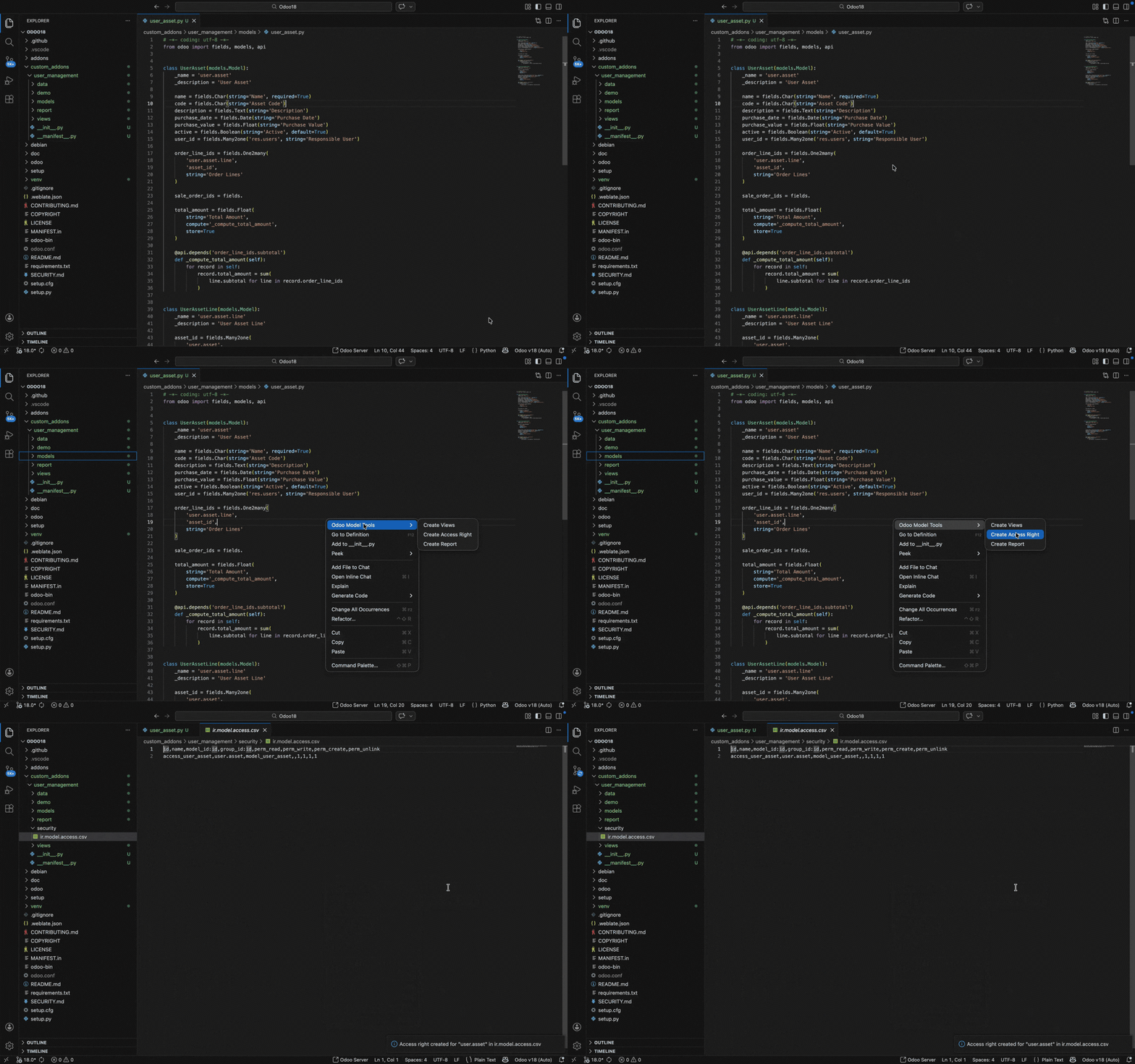
How it works:
- Checks for existing file: If the
ir.model.access.csvfile doesn't exist, the tool creates it with the correct title and the model's access record. - Avoids duplicates: If the file already exists, the tool checks if your model already has a security rule. If it does, it skips adding it. If not, it adds the new rule.
For more technical details, check the Odoo Official Documentation.