

Reports
Ask for a report and Assista X builds a formatted document from your live Odoo data. Aged receivables, sales by rep and vendor spend are the kind of report you used to build by hand, and are now one question away. You can restyle the report with a template and download it.
What you can do
- Generate a report from a question, with a title, summary, tables, metric cards and totals.
- Pick a template, accent color and paper format.
- Check and edit your company details before you download.
- Download the report as a PDF, an image or an HTML file.
- Find old reports again in the Reports tab of the sidebar.
- Design your own templates in Settings > Report Templates.
Generate a report
- Ask for the report in plain language and say it is a report, a PDF or a downloadable document. For example "Create a report of aged receivables", "Make a PDF of sales by rep this quarter" or "Report on vendor spend this month".
- While it is built, the answer shows "Generating report".
- A report card appears with the title and a short summary. Select Open Report.
INFO
Assista X only builds a report when you ask for one. Ordinary data questions return a normal answer with tables and charts.
What a report contains
| Part | What it is |
|---|---|
| Title | The name of the report, also used as the file name |
| Header fields | Label and value pairs such as the period, the customer or the order reference |
| Summary | A one-sentence description of what the report covers and its key finding |
| Sections | Table sections with columns and rows, Text sections for notes, and Metric sections with value cards such as Total Revenue |
| Totals | A closing list such as Untaxed and Total |
Names are resolved to readable values, dates are written as DD/MM/YYYY and money has two decimals.
Customize and download a report
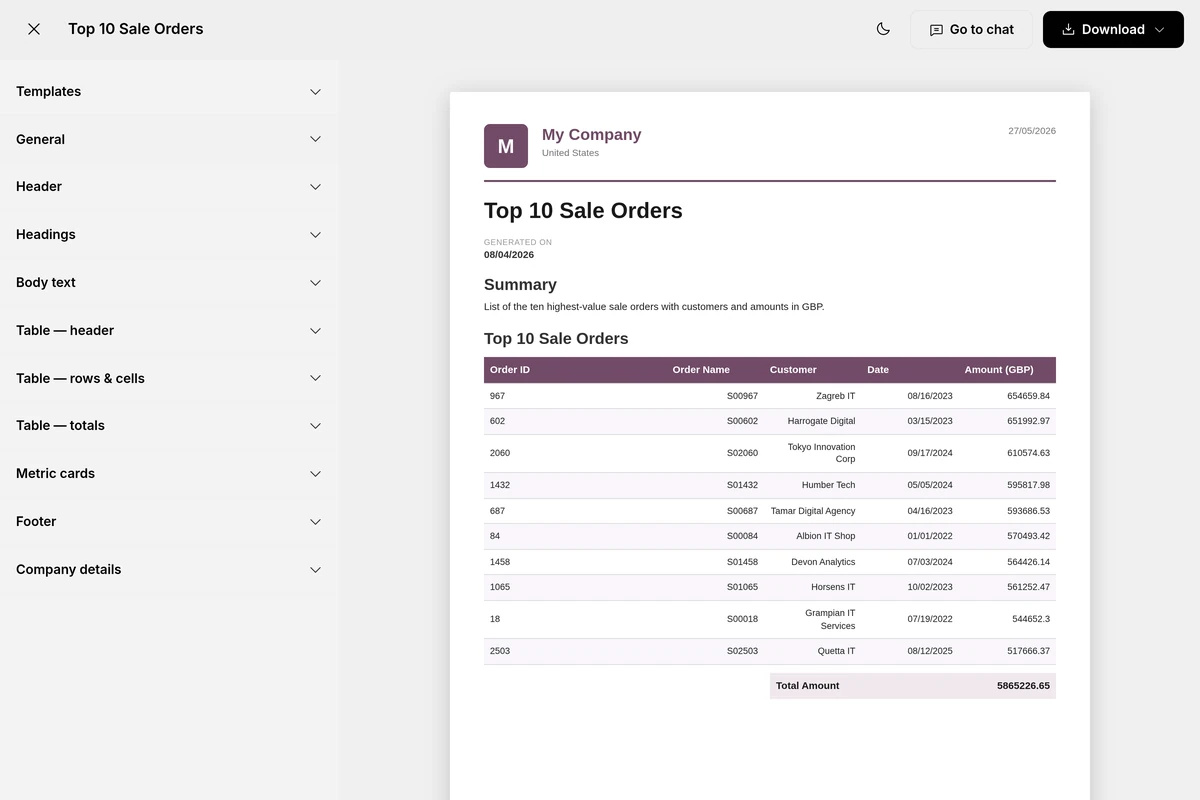
Open Report opens the report editor. The preview is on the right and the controls are on the left.
Templates and general settings
- Templates. Select a saved template to apply its look. If you have none, the editor says "No templates yet. Create one in Settings → Report Templates."
- Accent color. The main color of the report.
- Paper format. A4, LETTER, LEGAL, A3 or LANDSCAPE.
Company details
The Company details section holds the fields shown in the report header. They are loaded from your Odoo company, and you can edit them for this report.
| Field | |
|---|---|
| Company name | Tagline |
| Address | Phone |
| Website | |
| Tax ID | Registry |
Style sections
The editor also has sections for Header (logo, logo position, which company details and date to show), Headings, Body text, the Table (header, rows and cells, totals row, and a table style of lines, grid, borderless or rounded), Metric cards and Footer (page numbers, company name and custom text).
Save and download
| Button | What it does |
|---|---|
| Save | Saves your changes. It appears when you have changed something. A toast says "Report saved" |
| Go to chat | Returns to the chat the report came from |
| Download | Opens a menu with Save as PDF, Save as Image (PNG) and Save as HTML |
The preview has a fullscreen button with zoom controls. If you close the editor with unsaved changes, a dialog asks "Discard unsaved changes?" with Discard and Cancel.
Report templates
Open Settings > Report Templates ("Design and manage PDF report templates") to manage your templates.
- Select New Template.
- Enter a Template name. A name is required: you see "Template name is required" without one.
- Set the Accent color and Paper format, and change any style section.
- Turn on Set as default if you want it applied to new reports.
- Save. The app shows "Template created", or "Template updated" when you edit one.
Each template appears as a card with its color, paper format and a Default badge, and you open it with Edit.
Find your reports again
In the sidebar, switch from Chats to Reports to see your saved reports. Use Search reports… to filter them, and Load more reports to see older ones.
Tips and limits
- Say what the report should cover and for which period, so the title and header fields are specific.
- Check the numbers in the preview against Odoo before you send a report to others.
- The company details come from the Odoo server that is active for the report. Edit any field that should read differently.
- If a download fails you see "PDF generation failed", "Image export failed" or "HTML export failed". Try again, or choose another format.