

Create modules and files
Create a complete Odoo module, or a single model, view, report, OWL component or access right, from a right-click menu. The generated code matches the Odoo version of your project, so you skip the boilerplate and start with code that follows current Odoo conventions.
These tools come from the bundled Odoo Helper and support Odoo 18, 19 and 20. The status bar shows the version it detected, for example Odoo v20 (Auto). Select it to change the version, or run Assista: Set Odoo Version from the Command Palette (Ctrl+Shift+P, Cmd+Shift+P on macOS).
What you can do
- Create a whole module from six templates in one step.
- Create one file at a time: a model, a controller, a view, a security file or a report.
- Generate views, reports and access rights from a model you already wrote.
- Add OWL components and POS screen extensions to an existing module.
- Add files to
__init__.pyand to the manifest without editing them by hand. - Get version-correct code:
<list>views, kanbancardtemplates andir.access.csvon Odoo 20.
Find the menu
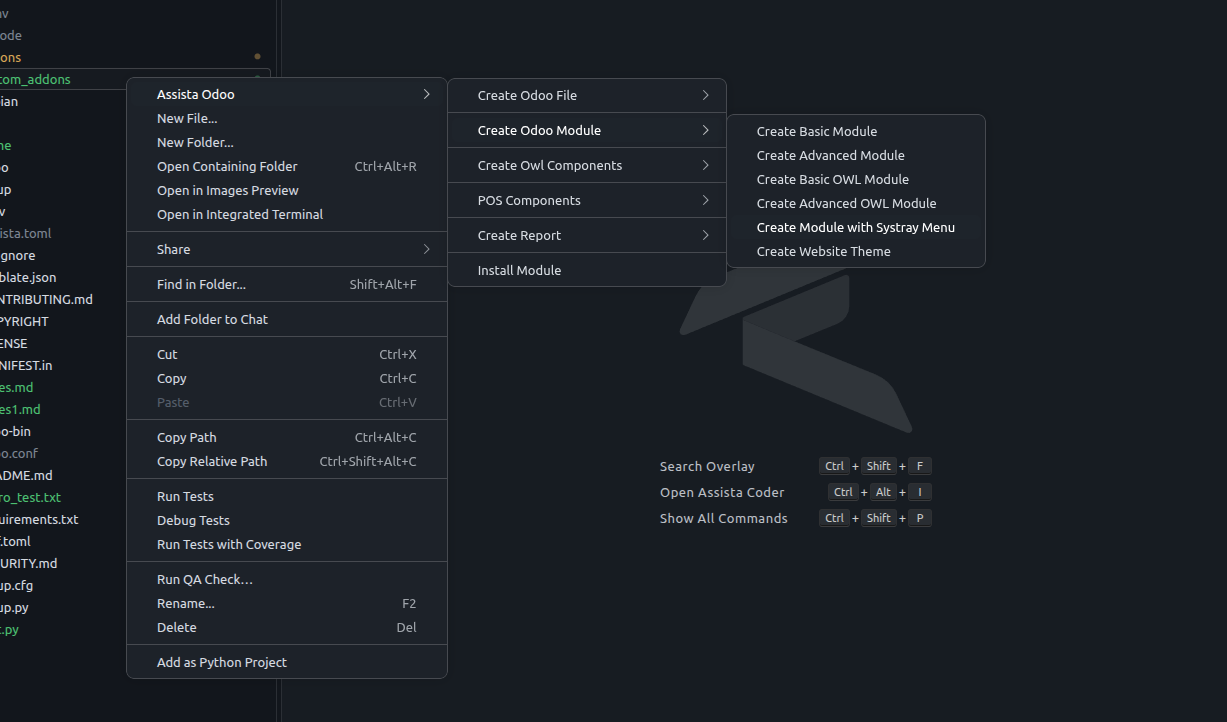
Right-click a folder in the Explorer and select Assista Odoo. The submenu has these entries.
| Entry | Use it to |
|---|---|
| Create Odoo File | Create a model, controller, view or security file, or add a file to __init__.py. |
| Create Odoo Module | Create a whole module from a template. |
| Create OWL Components | Add an OWL component, field widget, public component or service to a module. |
| POS Components | Extend a Point of Sale screen. |
| Create Odoo Report | Create a PDF or HTML report template file. |
| Install Module and Module Dependency Graph | Work with a module on a running Odoo server. |
Right-click inside a model class in a Python file and select Odoo Model Tools to generate code from a model.
Create a module
- Right-click the folder where the module should go.
- Select Assista Odoo, then Create Odoo Module, then a template.
- Enter a technical name. Use lowercase letters and
_only.
Assista creates the folder, opens __manifest__.py and shows a confirmation. If a module with that name already exists in the folder, it stops and creates nothing.
| Template | What you get |
|---|---|
| Create Basic Module | A manifest, a model, its views and an access file. |
| Create Advanced Module | The basic module plus sequence and cron data and demo data. |
| Create Basic OWL Module | The basic module plus an OWL client action. |
| Create Advanced OWL Module | The advanced module plus an OWL dashboard with charts, fed by a JSON controller. |
| Create Module with Systray Menu | A systray item built as an OWL component. |
| Create Website Theme | Layout, header and footer templates for the website app. |
Every module gets a manifest with your Odoo version (for example 20.0.1.0.0), the LGPL-3 license and application set to True (False for a theme). The model is named after the module, so library_book creates the model library.book.
Basic module
Best for learning, tests and quick prototypes.
library_book
├── __init__.py
├── __manifest__.py
├── models
│   ├── __init__.py
│   └── library_book.py
├── security
│   └── ir.access.csv
└── views
└── library_book_views.xml- The model has
name,state(draft, confirmed, done),description,amountandactivefields. It overridescreate,writeandunlink, and has anaction_do_somethingbutton method to fill in. - The views file has list, form, kanban and search views, a window action and a menu.
- The access file gives internal users full access to the model.
Advanced module
The basic module plus data files. Use it for business apps and team projects.
library_book
├── data
│   ├── ir_cron_data.xml
│   └── ir_sequence_data.xml
├── demo
│   └── library_book_data.xml
├── models
├── security
├── views
├── __init__.py
└── __manifest__.py- The model adds a
datefield, andcreatefillsnamefrom a sequence. - The views add calendar and pivot views.
- The sequence data creates a sequence with the prefix
SEQ. The cron data runscron_sample_methodon the model every day. Replace the method body with your own logic. - The demo file creates two sample records.
OWL modules
| Template | What you get |
|---|---|
| Basic OWL Module | The basic module plus static/src/js/client_action.js and static/src/xml/client_action.xml. A form button opens the client action, which shows a welcome screen with a Say hello button. The module depends on web and loads both files in web.assets_backend. |
| Advanced OWL Module | The advanced module plus controllers/main.py and static/src/{js,xml,scss}/client_action.*. The model inherits mail.thread and adds partner_id, user_id and company_id. The dashboard has a record picker, a chart picker (pie, donut, bar, line) and a date filter. A JSON route /<module>/chart_data returns totals per partner. |
The chart library depends on your version. Odoo 20 uses Chart.js through Odoo's web.chartjs_lib. Odoo 18 and 19 use Google Charts, which needs an internet connection when the dashboard opens.
Systray module
library_book
├── __init__.py
├── __manifest__.py
└── static
    └── src
        ├── js
        │   └── systray.js
        └── xml
            └── systray_templates.xml
An OWL component adds a star button to the systray, the area at the top right of Odoo. Selecting it shows a notification. Use it as the starting point for notification centers, quick-access tools or user utilities.
Website theme
library_book
├── __init__.py
├── __manifest__.py
└── views
    ├── footer_template_views.xml
    ├── header_template_views.xml
    └── layout_template_views.xml
The templates extend the website homepage, the website layout and the frontend footer. The manifest depends on website, and has empty asset bundles for web.assets_frontend and the theme's primary variables so you can add your own files.
Create a file
Right-click a folder, select Assista Odoo, then Create Odoo File.
| Entry | What it creates |
|---|---|
| Create Model File | An __init__, __manifest__, Odoo model or Odoo controller file. |
| Create View File | An empty, basic, advanced or inherited view, or a report, security group, security rule, sequence, settings or cron job file. |
| Create Security File | Right-click a module's security folder. You enter a model, and it adds an access row to the access file for your Odoo version. |
Add to __init__.py | Adds from . import <name> for the file or folder to the parent __init__.py. |
Assista asks for a file name. Use lowercase letters and _ only, without an extension, for example sale_order. If the file already exists, Assista keeps it and shows a warning. Model and controller files, and every view file, must go in a folder inside a module, not at the module root.
Model file templates
| Template | What it contains |
|---|---|
__init__ | A coding line and from . import ready for your first import. |
__manifest__ | A manifest with name, version, category, summary, description, author, website, depends on base, a data list with the access file for your version and a views file, the LGPL-3 license, and installable, application and auto_install flags. |
| Odoo Model | A model class named after the file, with _name set to the file name with dots (sale_order becomes sale.order) and a name field. |
| Odoo Controller | A controller class with one public route that returns a greeting. Change the route and the response. |
View file templates
| Template | What it contains |
|---|---|
| Empty View | An <odoo> root with a comment. |
| Basic View | A form and a list view, a window action and a menu item. |
| Advanced View | A form with a status bar and buttons, a ribbon, a notebook with a lines tab and a notes tab, and a chatter. Also list, search, calendar and kanban views, a window action and a menu. |
| Inherit View | A form view and a list view that extend existing views, with examples of every xpath position: inside, attributes, replace, before and after. |
| Report View | A report action and a QWeb template with a header block, a lines table and a totals block. |
| Security Group View | User and Manager groups, grouped under a privilege on Odoo 19 and 20. The manager group implies the user group. |
| Security Rule View | Access rights for the user and manager groups. Users can read, write and create their own records. Managers have full access. |
| Sequence View | An ir.sequence with a year-based prefix and five-digit padding, in a noupdate block. |
| Settings View | An app, block and setting inside the settings form, plus an action that opens it. |
| Cron Job View | A daily scheduled action that calls _cron_<name>() on the model, in a noupdate block. |
The view templates use the file name to pick the model. For sale_order_views.xml, Assista removes the suffix (_views, _templates, _data, _report, _security or _menus) and looks for a model in your workspace named sale.order. If it finds none, it replaces _ with .. Check the model name and replace the placeholder fields (field1, line_ids, your_field_setting) with your own fields.
Two templates need a follow-up step:
Sequence View. Call the sequence from your model's
createmethod:pythonvals['name'] = self.env['ir.sequence'].next_by_code('library.book')Cron Job View. Define the method it calls on your model, for example
_cron_library_book.
The security templates use a privilege for the groups and ir.access records for access rights and record rules:
<record id="access_library_book_user" model="ir.access">
    <field name="name">library.book: user</field>
    <field name="model_id" ref="model_library_book"/>
    <field name="group_id" ref="group_library_book_user"/>
    <field name="operation">cru</field>
    <field name="domain">[('create_uid', '=', user.id)]</field>
</record>
Create Odoo Report
Select Assista Odoo, then Create Odoo Report, then Create PDF Report or Create HTML Report. Assista creates a report template file in the selected folder, the same as the Report View template.
Add OWL components
Right-click a folder inside a module, select Assista Odoo, then Create OWL Components and a component type. Assista asks for a name, for example MyWidget, creates the files in the current module and adds them to the manifest assets.
| Component | Created in | Bundle |
|---|---|---|
| Common Component | static/src/components/<name>/ (.js, .xml, .css) | web.assets_backend |
| Field Widget Component | static/src/views/fields/<name>/ (.js, .xml, .scss) | web.assets_backend |
| Public Component | static/src/components/<name>/ (.js, .xml, .scss), registered in public_components | web.assets_frontend on Odoo 20, web.assets_backend on 18 and 19 |
| Owl Service | static/src/services/<name>/<name>.js | web.assets_backend |
The folder name is the component name in lowercase without spaces, so MyWidget creates mywidget. Odoo 20 components use OWL 3.
Extend a Point of Sale screen
Right-click a folder inside a module, select Assista Odoo, POS Components, Extend Screen, then a screen. Assista extends the screen with patch() and template inheritance, adds the files to the point_of_sale._assets_pos bundle and adds point_of_sale to depends.
| Screen | Files under static/src/app/screens/ |
|---|---|
| Product Screen | product_screen/product_screen.{js,xml,scss} |
| Partner List Screen | partner_list/partner_list.* on Odoo 20, partner_list_screen/partner_list_screen.* on 18 and 19 |
| Payment Screen | payment_screen/payment_screen.* |
| Receipt Screen | On Odoo 20, receipt/generate_printer_data.js patches the receipt data and views/pos_order_receipt.xml extends the receipt footer template. On 18 and 19, receipt_screen/receipt_screen.* |
| Order Management Screen | ticket_screen/ticket_screen.* |
Generate code from a model
Right-click inside a model class in a Python file and select Odoo Model Tools. These tools work for models that define _name.
Create views
- Select Create Views.
- Choose the views you want: Form, List, Kanban, Search, Calendar, Pivot, Window Action and Menu. Form, List, Search, Window Action and Menu are selected for you.
- Choose Quick Create to use all fields, or Advanced Builder to pick the fields for each view. For a
One2manyfield in the form, you also pick the columns of its list.
Assista writes views/<model>_views.xml, adds it to the manifest and opens it. A calendar view is only created when you pick a date field. A model that inherits mail.thread gets a <chatter/> in its form. The window action opens on the list, not on a blank form.
Create a report
- Select Create Report.
- Choose PDF Report or HTML.
- Choose the title field and the header fields. Optionally add a
One2manyorMany2manyfield as a table of lines, and pick its columns.
Assista writes report/<model>_pdf_report.xml or report/<model>_html_report.xml. The file has the report action, which appears in the model's Print menu, and a template based on web.external_layout. It also adds the file to the manifest. Fields are labelled with their Odoo labels, not their technical names.
INFO
PDF reports need wkhtmltopdf on the machine that runs Odoo.
Create an access right
Select Create Access Right. Assista adds a full-access rule for internal users (base.group_user) to the access file for your Odoo version, creates the file with its header if needed, adds it to the manifest and opens it. It does nothing if the model already has a rule.
Rules go in security/ir.access.csv:
id,name,model_id,group_id/id,operation,domain
access_library_book_user,library.book user,library.book,base.group_user,crud,
See how a model is extended
Select Model Inheritance Graph to see the model, every module that extends it, and the fields and methods each one adds. Double-click a node to open its code. If you connected an Odoo server, the graph also shows which modules are installed. The graph needs an internet connection.
Keep imports and the manifest up to date
- Add to
__init__.py. Right-click a Python file or a folder in the Explorer or the editor, then select Add to__init__.py. Assista addsfrom . import <name>to the parent__init__.py, creates that file if it does not exist, and tells you when the import is already there. - Add File to Manifest. Run Add File to Manifest from the Command Palette to add the current file to the
datalist in the manifest. The list must already exist.
Connect an Odoo server
Connect a running Odoo server to install modules from the IDE.
- Select Odoo Server in the status bar, or run Assista: Update Odoo Server Settings.
- Enter the URL, database, user and password. The status bar then shows the server host.
- Right-click a module folder and select Assista Odoo, then Install Module. After you confirm, Assista installs the module, or upgrades it if it is already installed.
Use a development account
The server settings, including the password, are stored as plain text in the IDE's storage for this workspace.
To see a module's dependencies, right-click its folder and select Assista Odoo, then Module Dependency Graph. Select a module in the graph to open its manifest, or download the graph as HTML. The graph needs an internet connection.
Version differences
The generators follow your Odoo version. Examples of what changes:
| Topic | Odoo 18 | Odoo 19 | Odoo 20 |
|---|---|---|---|
| Access rights file | ir.model.access.csv | ir.model.access.csv | ir.access.csv |
| Security groups | category_id | privilege_id | privilege_id |
| SQL constraints | _sql_constraints | models.Constraint | models.Constraint, models.Index, models.UniqueIndex |
| JSON routes | type='json' | type='jsonrpc' | type='jsonrpc' |
| OWL | OWL 2 | OWL 2 | OWL 3 |
| Report action | with report_file | with report_file | without report_file |
| Manifest version | 18.0.1.0.0 | 19.0.1.0.0 | 20.0.1.0.0 |
On Odoo 20, a kanban view uses a card template:
<kanban sample="1">
    <templates>
        <t t-name="card">
            <field name="name" class="fw-bold fs-5"/>
        </t>
    </templates>
</kanban>
Tips and limits
- Add the Odoo source folder to your workspace so core models, fields and templates appear in suggestions too.
- Name files after what they hold, in lowercase with underscores, such as
sale_order_inherit.pyorproduct_data.xml. Keep models, views, wizards and reports in their own folders (models/,views/,wizard/,report/) so the coding standard warnings stay quiet. - Generated files are added to the module manifest for you. Check it if you move files later.
- Remove the placeholder fields and comments from a template before you commit it.
Next steps
- Type keywords to insert code with Python snippets and XML snippets.
- Get context-aware suggestions as you type.
- Run and debug Odoo.
- Let Assista Coder write module code for you.