

Odoo Go-To-Definition
The Odoo Go-To-Definition feature provides framework-aware navigation. It resolves the complex relationships between Python and XML files, allowing you to jump directly to the primary definition of models, fields, functions, and frontend components.
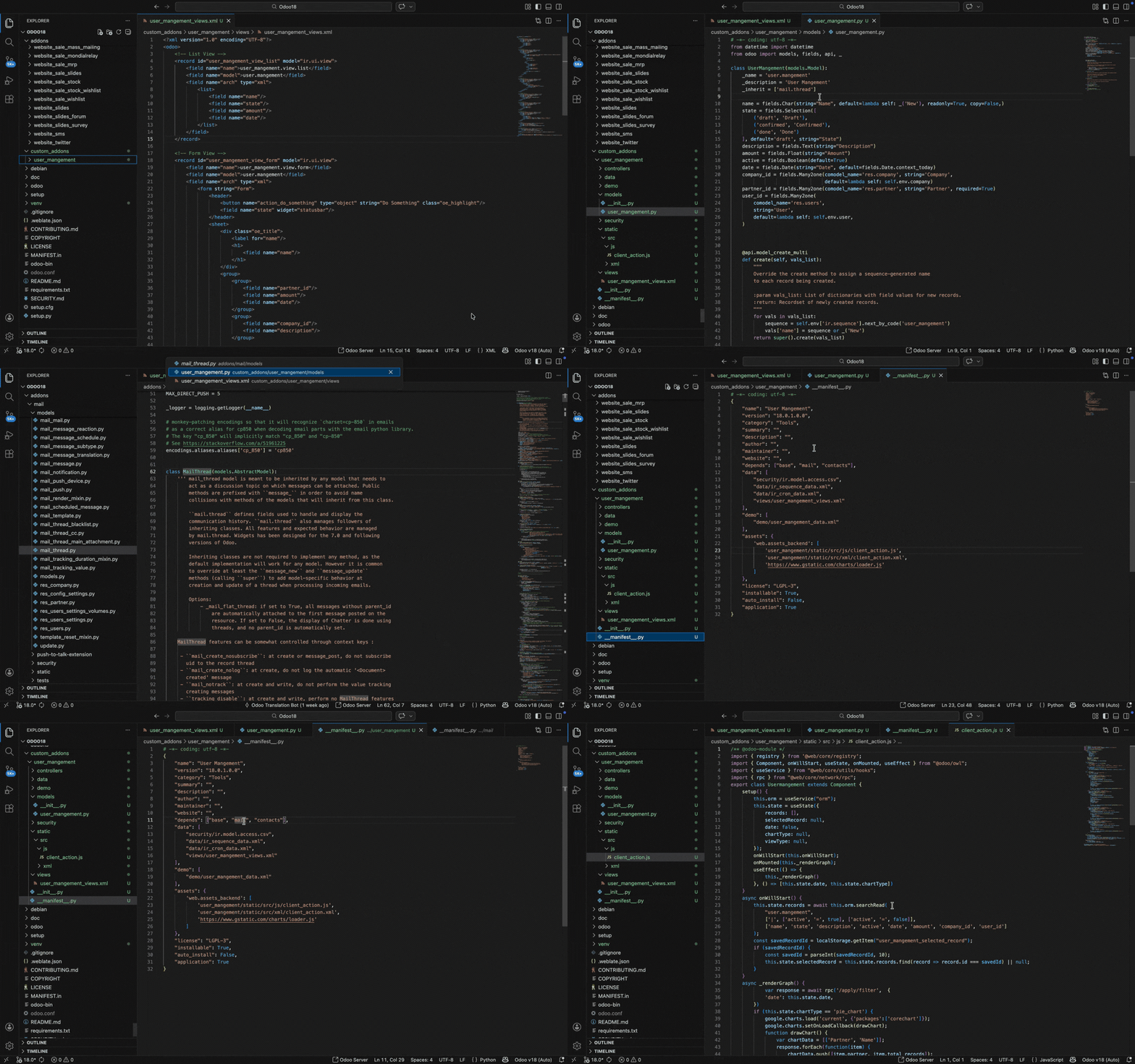
How to Use
You can navigate your code using standard VS Code shortcuts:
- Shortcut:
Shift + ClickorF12. - Peek Definition:
Alt + F12(opens a small window to see the code).
WARNING
If the Indexing Services are disabled in the plugin settings, the "Go to Definition" features will not work. Ensure indexing is enabled to allow Assista to map your Odoo project correctly.
1. Field Go to Definition
Find exactly where an Odoo field is defined in Python.
In XML Files
If you click on a field name inside a <record> tag, Assista intelligently finds the correct model:
- Inside a View: If the field is inside a view record (like a form or list), it opens the field definition in that view's model.
- Inside Data Records: For other records, it looks at the model defined in the
model="..."attribute of the record tag.
Example:
<record id="patient_view_form" model="ir.ui.view">
    <field name="model">hospital.patient</field>
    <field name="arch" type="xml">
        <form>
            <field name="age"/> <!-- Click 'age' to open its definition in 'hospital.patient' -->
        </form>
    </field>
</record>
In Python Code
Jump from a field usage directly to its definition line:
def check_status(self):
    if self.state == 'draft': # Click 'state' to jump to its definition
        print(self.name)
2. Model Go to Definition
Jump directly to the Python class for any Odoo model.
In XML Records
You can jump to the model definition from several places in XML:
- Record Model: Click on the value of
model="..."in a<record>tag. - View/Action Model: Click on the model name in a
<field name="model">or<field name="res_model">.
Example:
<!-- Click on the model attribute below to open the 'hospital.patient' model class -->
<record id="patient_john_doe" model="hospital.patient">
    <field name="name">John Doe</field>
</record>

<!-- Click on the field value below to open the 'hospital.patient' model class -->
<record id="hospital_patient_pivot" model="ir.ui.view">
    <field name="name">hospital.patient.pivot</field>
    <field name="model">hospital.patient</field>
</record>
In Python Models
- Inheritance: Click on a model name inside the
_inheritlist. - Environment Calls: Click on the model name inside
self.env['model.name'].
Example:
class Patient(models.Model):
    _inherit = 'mail.thread' # Click 'mail.thread' to open the mail model

    def get_orders(self):
        orders = self.env['sale.order'].search([]) # Click 'sale.order' to open the Sale Order model
3. Function/Method Go to Definition
Jump from a button or a method call directly to the Python function.
In XML Buttons
If a button triggers a Python method (type="object"):
<button name="action_confirm" type="object" string="Confirm"/>
<!-- Click 'action_confirm' to open its Python function -->
In Python Code
self.process_patient_data() # Click 'process_patient_data' to jump to the function4. OWL Component Go to Definition
Navigate your frontend code directly from your XML files.
Widgets & Components
- Widgets: Click on the value of a
widget="..."attribute. - Public Components: Click on the name in a
<t-component>tag. - Client Actions: Click on the
tagvalue in anir.client.actionrecord.
Example:
<field name="tags" widget="many2many_tags"/> <!-- Click to see widget registration -->
<t t-component="MyWidget"/> <!-- Click to see component definition -->
5. CSS & Template Go to Definition
Find exactly where styles and templates are located.
- CSS Classes: Click on any value inside a
class="..."attribute to open the CSS/SCSS declaration. - Templates: Click on a template name inside a
t-callto open its definition.
6. Manifest, Modules & Files
Navigate your entire module structure via the __manifest__.py file.
- Dependencies: Click on a module name in the
dependslist to open that module's manifest. - Files: Click on any file path in the
dataorassetssections to open that file instantly.
Example:
'depends': ['base', 'hospital_management'], # Click to open 'hospital_management' manifest
'data': [
    'security/ir.model.access.csv', # Click to open the file
    'views/patient_views.xml', # Click to open the file
],
Why is this useful?
Odoo-aware navigation significantly speeds up your development workflow by removing the guesswork from large, multi-file codebases.
Instant Context Switching
Instead of manually searching for a model or field name in your sidebar, you jump directly to the source. This is especially helpful when working with core Odoo modules or large third-party apps where you don't know the exact file structure.
Faster Debugging
When a button doesn't work or a field shows the wrong data, you can instantly see its Python logic. Jumping from an XML button to its Python method takes less than a second, letting you trace errors immediately.
Understanding Relationships
Odoo is built on connections. By jumping from a view inheritance to its parent or from an OWL widget component registration, you can quickly understand how different parts of the framework are working together.
Manifest Mastery
No more navigating folders to find where a view or security file is. By clicking links directly in your __manifest__.py, you can manage your module's structure and assets without ever opening the file explorer.
Assista indexes your Odoo project automatically, so all these links are ready as soon as you open your project.