

Automatic Database Backup to Dropbox
Securing your data with redundant cloud storage is a best practice for any Odoo deployment. Easy Instance allows you to automate your database backups and store them safely in your Dropbox account.
1. Create a New App in Dropbox
To connect Easy Instance to Dropbox, you first need to create an application in the Dropbox Developers portal.
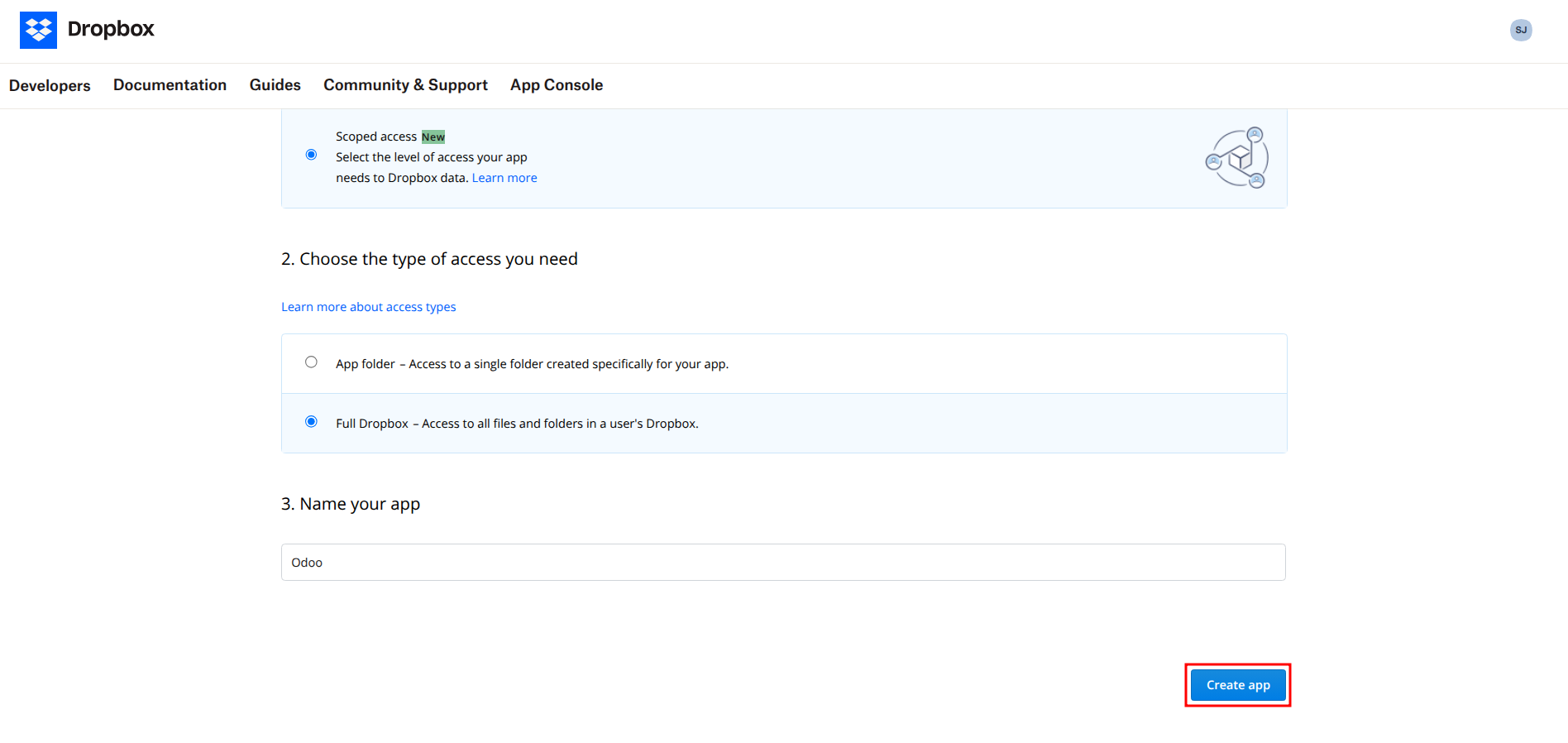
- Navigate to the Dropbox Developers App Console.
- Click Create app.
- Choose an API (e.g., Scoped access).
- Choose the type of access you need (e.g., App folder or Full Dropbox).
- Name your app (e.g.,
EasyInstance-Backup) and click Create app.
2. Retrieve App Key and Secret
Once the app is created, you will be taken to the app settings page.
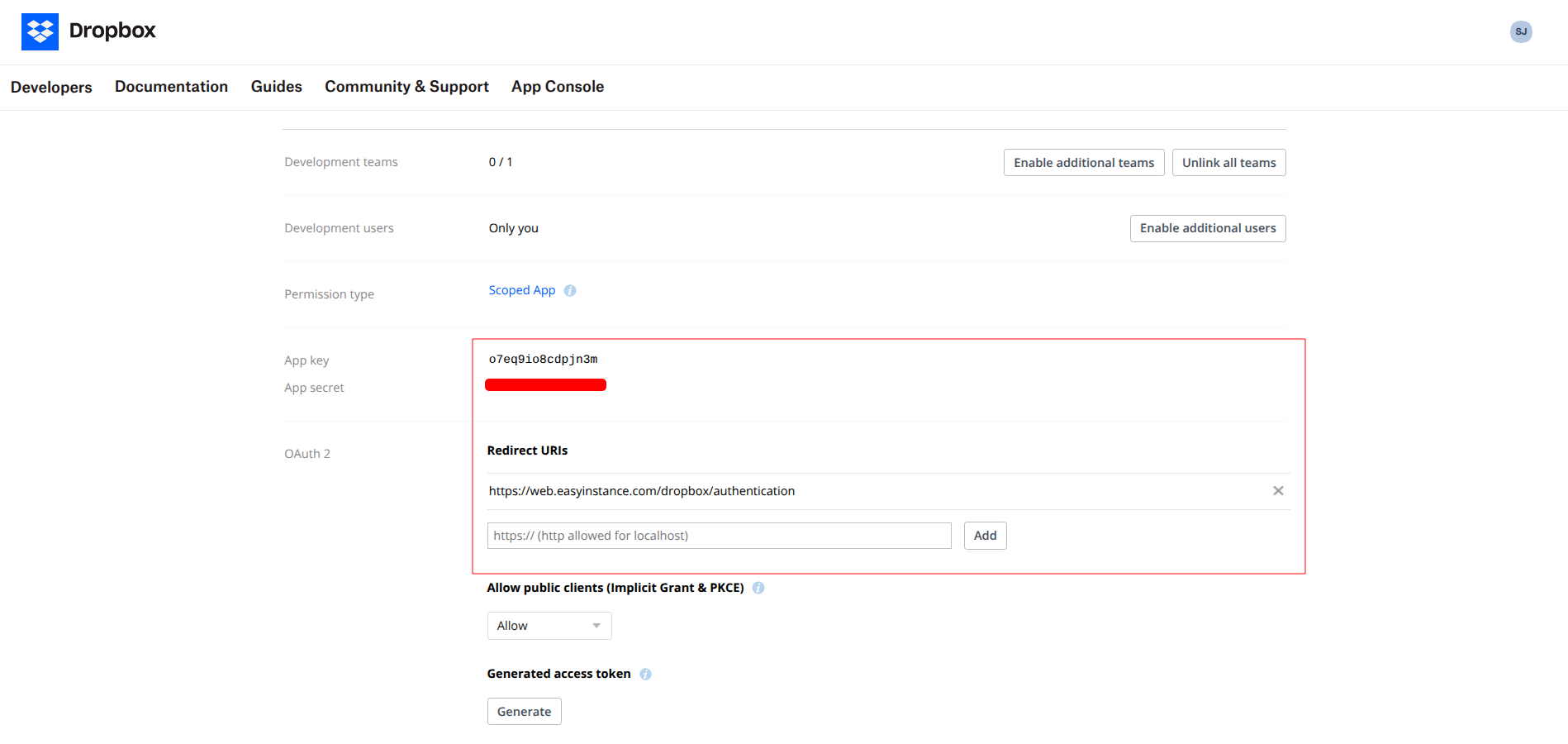
- Locate the App key and App secret. You will need these for the Easy Instance configuration.
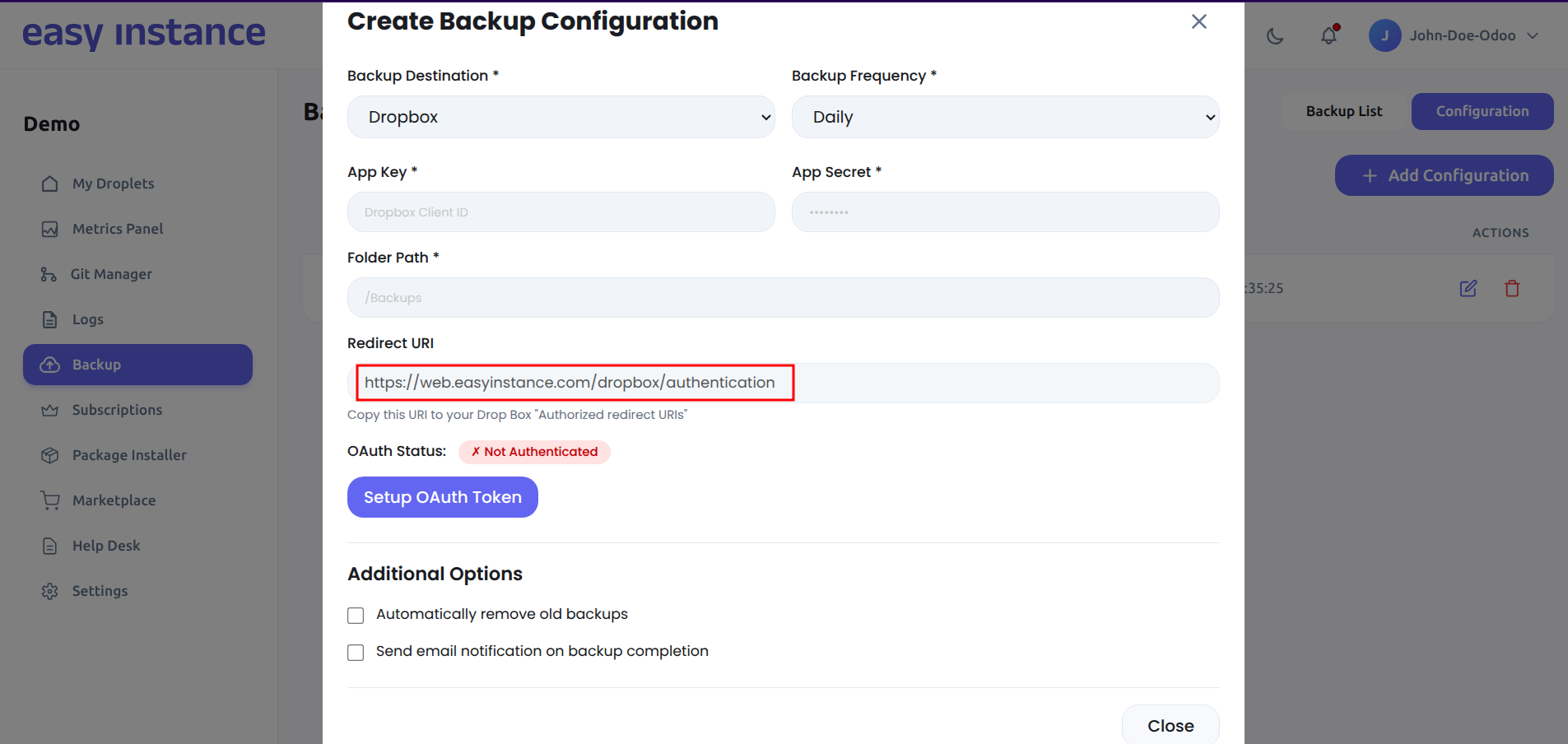
- In the Redirect URIs section, add the redirect uri shown in the backup configuration page .
- Example:
https://demo.easyinstance.com/dropbox/authentication
- Example:
3. Set Permissions
Before finalizing, ensure your app has the correct permissions to write files to Dropbox.
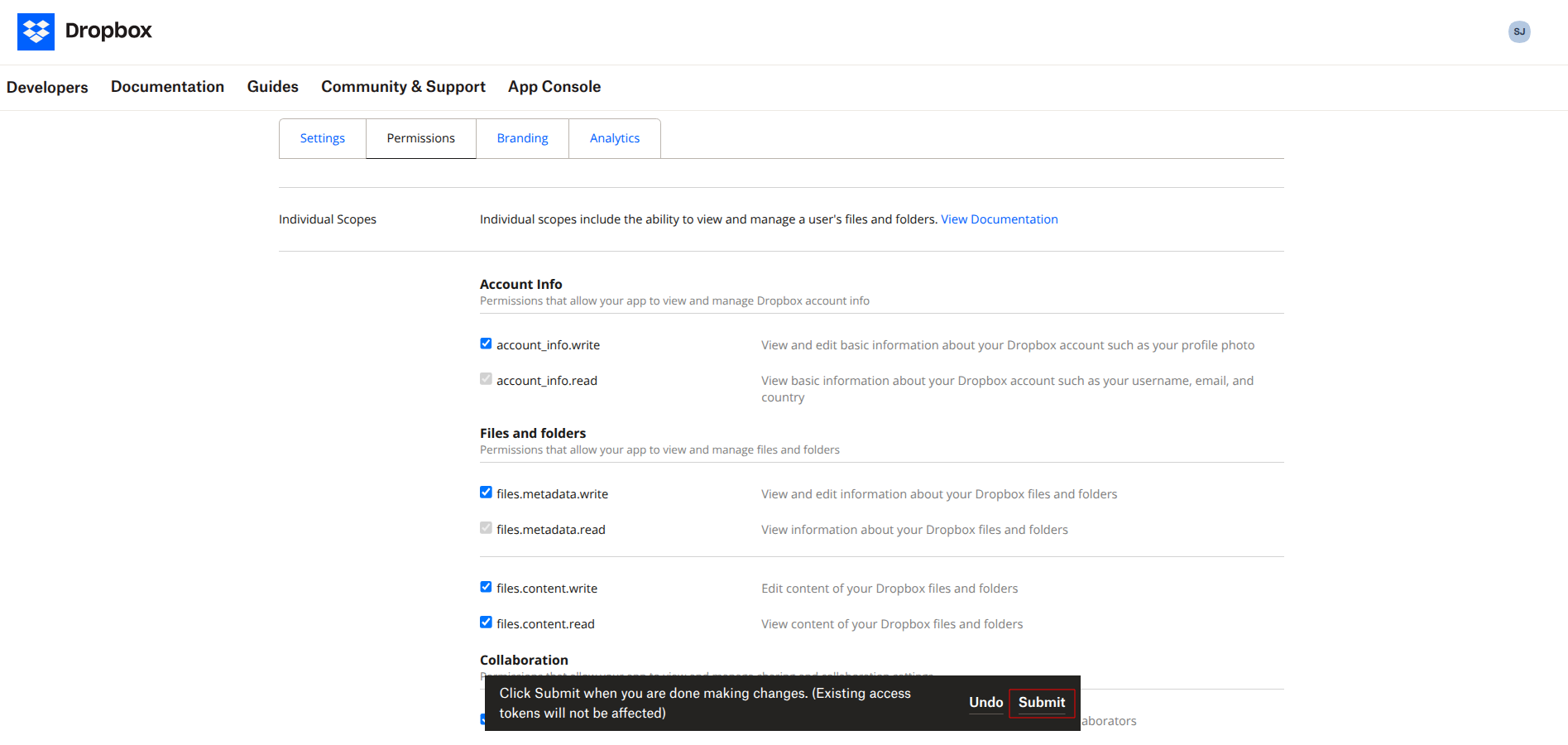
- Go to the Permissions tab.
- Ensure that
files.content.writeandfiles.content.readare checked. - Click Submit at the bottom of the page to save changes.
4. Configure Easy Instance Settings
Now, apply these credentials to your Odoo instance dashboard.
- Navigate to the Backup Configuration in your Easy Instance dashboard.
- Select Dropbox as the backup destination.
- Enter the App Key, App Secret, and the Dropbox Folder Name where you want the backups to be stored.
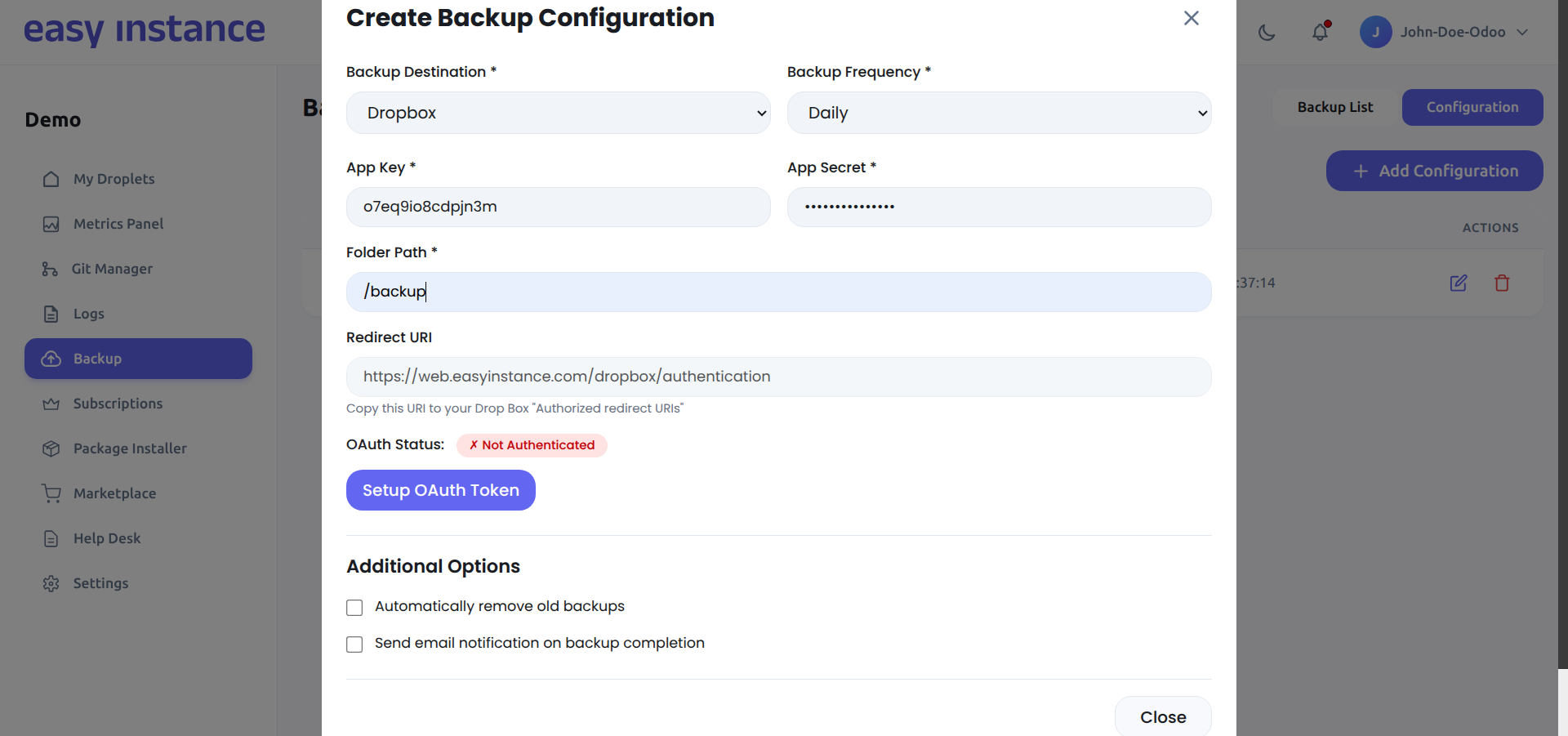
- Click Setup Token. You will be redirected to the Dropbox authorization page.
5. Authenticate and Authorize
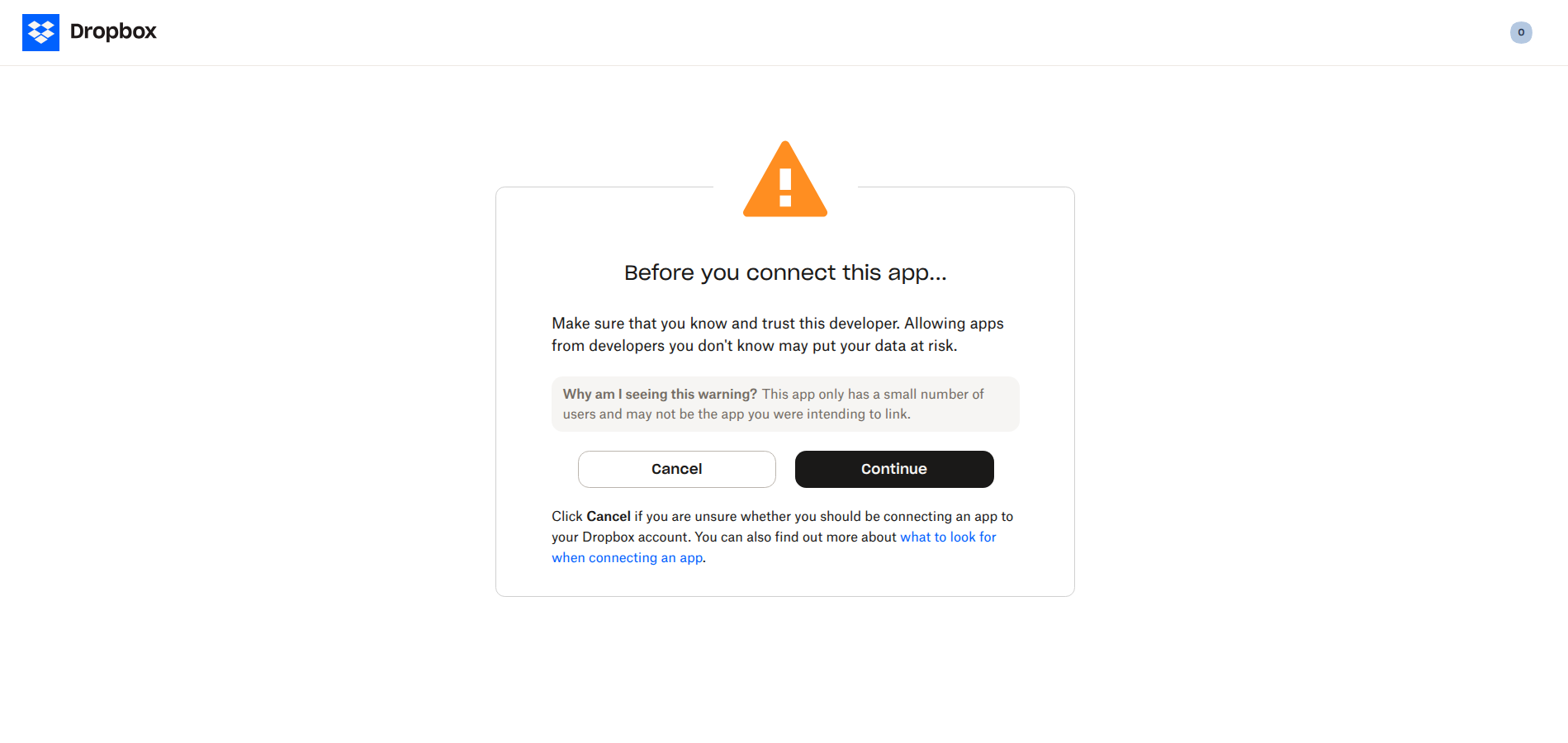
- A Dropbox window will appear. You may see a warning about the app being in development; click Continue.
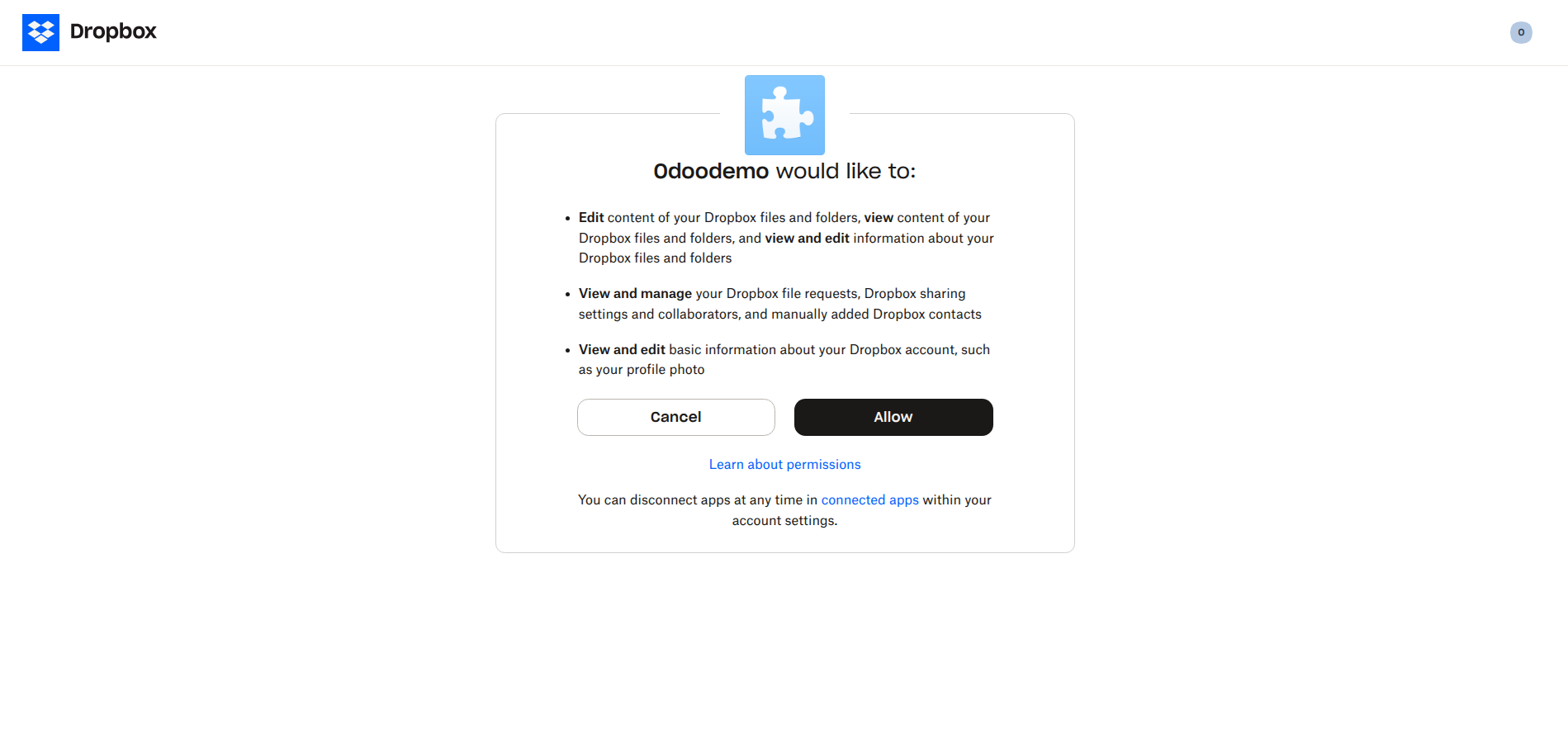
- Click Allow to grant Easy Instance permission to access your Dropbox.
6. Verify Backups
Once authorized, you will be redirected back to the dashboard.
- Backups will now be uploaded automatically according to your schedule.
- You can view the status of your backups in the Backup List.
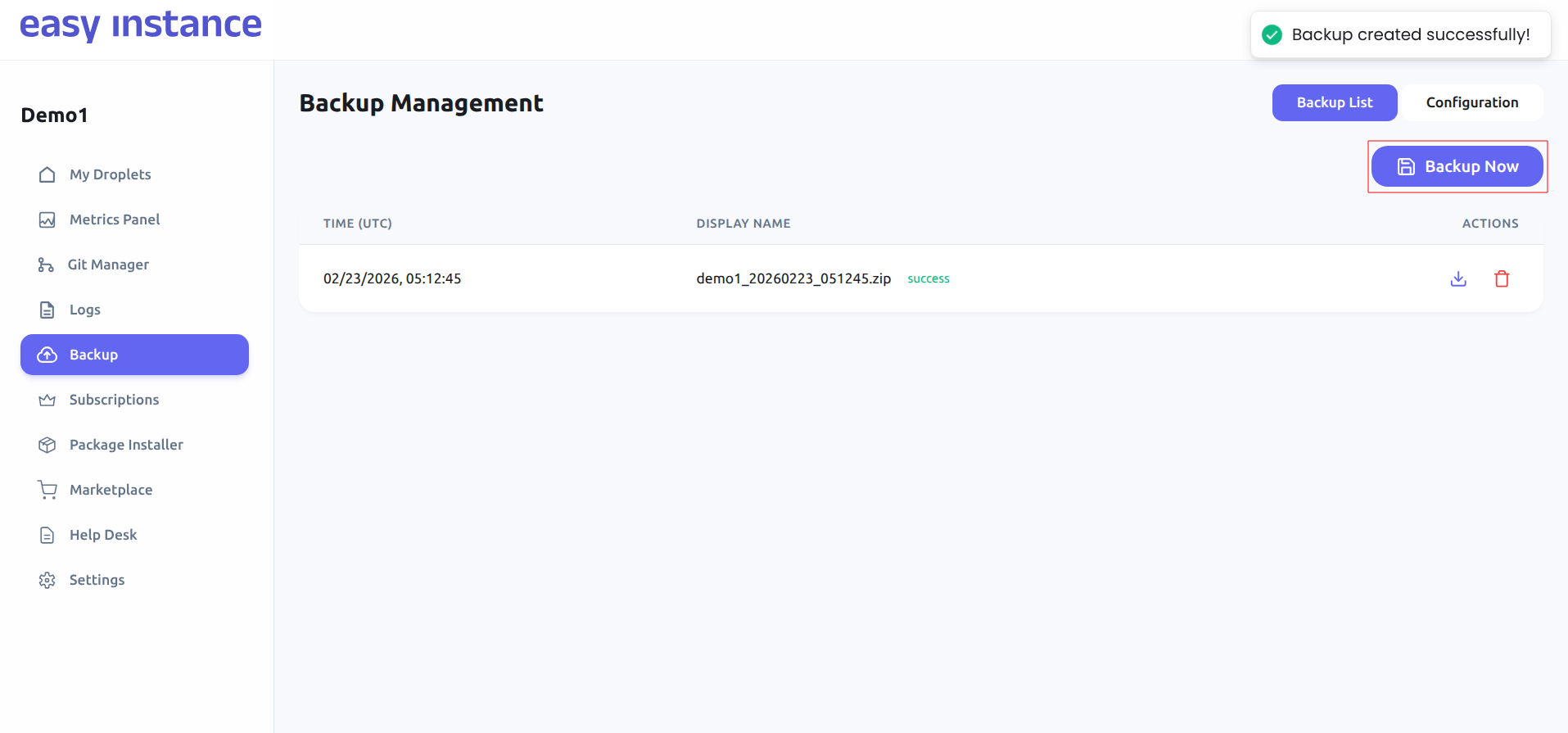
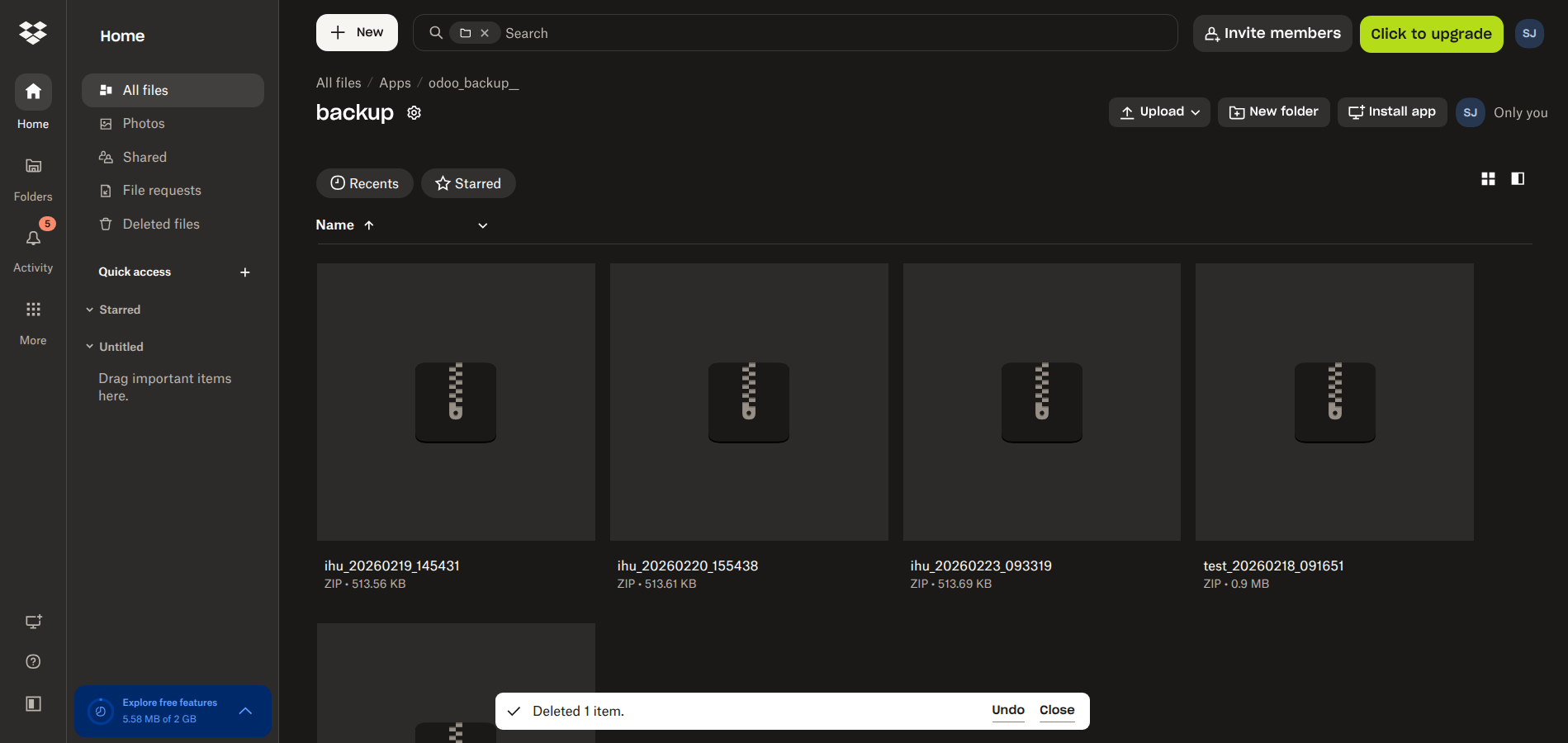
- You can also log in to your Dropbox account and verify the files in the specified folder.
Tip: Use the Backup Now button to trigger a manual backup immediately and verify the connection.