

Module templates
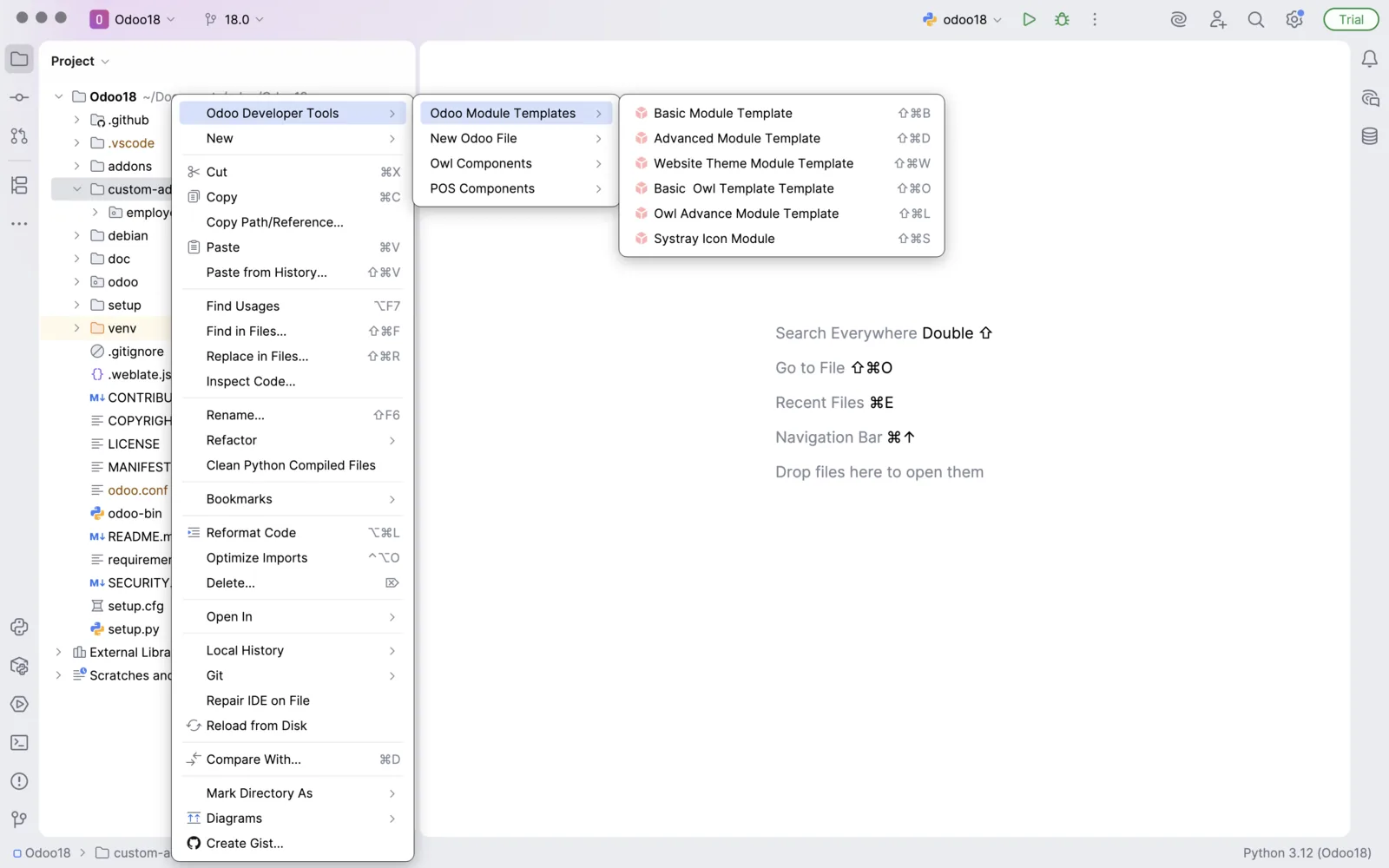
Create a ready-to-use Odoo module from the project view. Choose a template, enter a name, and the plugin writes the module folders and files: models, views, security and initialization scripts.
What you can do
| Template | Generates | Good for |
|---|---|---|
| Basic Module Template | __init__.py and __manifest__.py, a simple example model with basic CRUD methods, form and list views, minimal security. | Prototypes, learning, simple modules. |
| Advanced Module Template | The basic module plus complex models (multiple field types, mixins), several view types (form, list, kanban, calendar), advanced XML templates, security groups and record rules, demo data, scheduled actions and static asset folders. | Production modules, team projects. |
| Basic Owl Template | A minimal OWL (Odoo Web Library) module with an example JavaScript component and template, manifest entries for loading assets, and QWeb integration. | Simple widgets, buttons, UI enhancements. |
| Owl Advance Module Template | The OWL basic module plus multiple components, parent-child relationships, state management, advanced asset bundles, backend controllers and demo UI data. | Interactive dashboards, client features. |
| Website Theme Module Template | A website theme scaffold with QWeb templates, folders for CSS, JS, images and fonts, asset bundles and sample snippets. | Reusable website themes, design components. |
| Systray Icon Module | Custom icons and menus for the systray (the top-right bar of the Odoo web client): an OWL systray component, QWeb templates and manifest setup. | Notifications, quick actions, systray utilities. |
Get started
- Right-click the target folder in the project view. Use a folder that is in the addons path of your
odoo.conf. - Select Odoo Developer Tools > Odoo Module Templates and choose a template.
- Enter the module name and press Enter.
Module templates can only be created inside folders that follow an Odoo addons layout.
Expected structure
The folder names below are the plugin's documented output. The sample file names start with the module name you enter.
Basic Module Template
text
basic_module
├── __init__.py
├── __manifest__.py
├── models
│   ├── __init__.py
│   └── basic_module_sample.py
├── security
│   └── ir.model.access.csv
└── views
    └── basic_module_sample_views.xml
Advanced Module Template
text
advance_module
├── __init__.py
├── __manifest__.py
├── data
│   ├── ir_cron_data.xml
│   └── ir_sequence_data.xml
├── demo
│   └── advance_module_sample_data.xml
├── models
│   ├── __init__.py
│   └── advance_module_sample.py
├── security
│   └── ir.model.access.csv
├── static
│   ├── description
│   └── src
│       ├── css
│       ├── js
│       └── xml
└── views
    ├── advance_module_sample_views.xml
    └── templates.xml
Basic Owl Template
text
owl_basic
├── __init__.py
├── __manifest__.py
├── data
│   ├── ir_cron_data.xml
│   └── ir_sequence_data.xml
├── demo
│   └── owl_basic_sample_data.xml
├── models
│   ├── __init__.py
│   └── owl_basic_sample.py
├── security
│   └── ir.model.access.csv
├── static
│   └── src
│       ├── js
│       │   └── client_action.js
│       └── xml
│           └── client_action.xml
└── views
    └── owl_basic_sample_views.xml
Owl Advance Module Template
text
owl_advance
├── __init__.py
├── __manifest__.py
├── controllers
│   ├── __init__.py
│   └── main.py
├── data
│   ├── ir_cron_data.xml
│   └── ir_sequence_data.xml
├── demo
│   └── owl_advance_sample_data.xml
├── models
│   ├── __init__.py
│   └── owl_advance_sample.py
├── security
│   └── ir.model.access.csv
├── static
│   └── src
│       ├── js
│       │   └── client_action.js
│       └── xml
│           └── client_action.xml
└── views
    └── owl_advance_sample_views.xml
Website Theme Module Template
text
website_theme
├── __init__.py
├── __manifest__.py
├── static
│   ├── description
│   └── src
└── views
    ├── footer_template.xml
    ├── header_template.xml
    └── layout_templates.xml
Systray Icon Module
text
systray_module
├── __init__.py
├── __manifest__.py
└── static
    └── src
        ├── js
        │   └── systray.js
        └── xml
            └── systray_templates.xml
Shortcuts
| Action | Windows and Linux | macOS |
|---|---|---|
| Create Basic Module | Ctrl+Shift+B | Cmd+Shift+B |
| Create Advanced Module | Ctrl+Shift+D | Cmd+Shift+D |
| Create Website Theme Module | Ctrl+Shift+W | Cmd+Shift+W |
| Create Owl Basic Module | Ctrl+Shift+O | Cmd+Shift+O |
| Create Owl Advanced Module | Ctrl+Shift+L | Cmd+Shift+L |
| Create Systray Icon Module | Ctrl+Shift+S | Cmd+Shift+S |
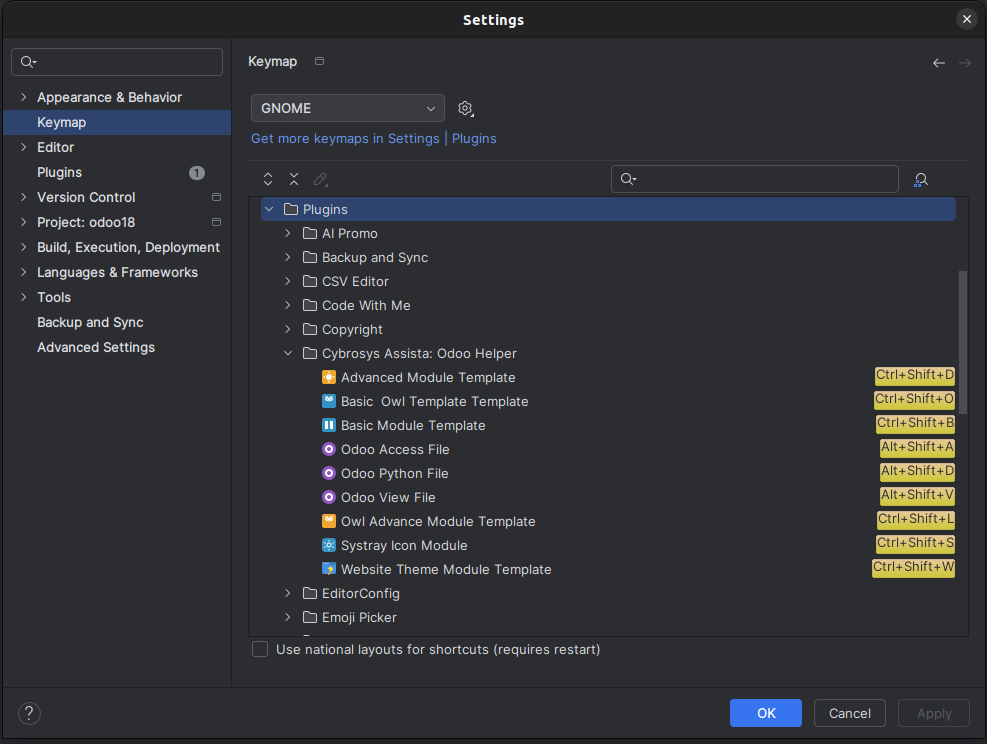
To change a shortcut:
- Open Settings (or Preferences on macOS).
- Select Keymap in the left sidebar and expand Plugins.
- Expand Cybrosys Assista: Odoo Helper and find the action.
- Right-click the action and choose Add Keyboard Shortcut.
- Press your key combination and apply the change. You can also remove or reassign a conflicting shortcut from the same menu.
Tips and limits
- Review the generated models, views and security files, and edit them to fit your module. Study the generated code to learn the Odoo patterns it uses.
- Start with the Basic template, then move to Advanced or OWL when you need demo data, scheduled actions or client components.
- Use a descriptive module name in lowercase with underscores, such as
my_first_module.
Next steps
- File creator to add files to your module
- Snippets
- Quick start