

How to Add a Git Collaborator
Easy Instance allows you to collaborate seamlessly with your team by adding GitHub users directly to your instance's repository. This enables other developers to push code, manage branches, and help build custom Odoo modules.
1. Navigate to the Git Manager
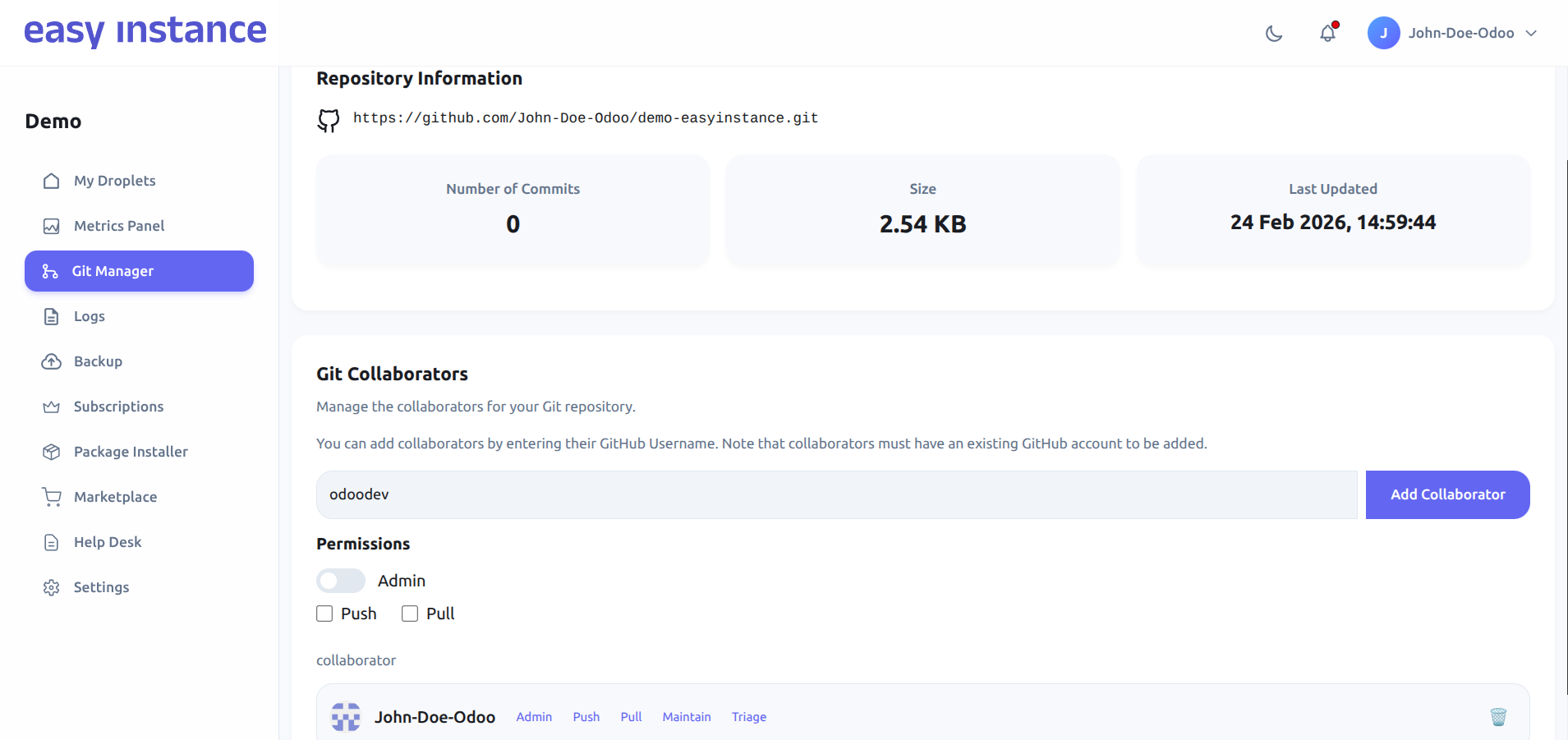
Open your instance dashboard and click on the Git Manager tab in the left-hand sidebar. This section centralizes all Git-related operations, including repository info, commits, and collaborator management.
2. Locate the Collaborators Section
Scroll down past the Repository Information and Commit History until you reach the Git Collaborators section.
3. Invite a Collaborator
To add a new team member to your repository:
- Find the input field labeled git-username.
- Type the exact GitHub username of the person you wish to invite (e.g.,
john-deo). - Select the permission level you want to grant the collaborator:
- Admin: Full control over the repository.
- Push: Ability to push code and manage branches.
- Pull: Basic read-only access.
- Click the Add Collaborator button to send the invitation with the selected permission.
4. Confirm the Invitation
Once the process is complete, a toast notification will appear in the top-right corner of your screen confirming: "Invitation sent to [username]".
The collaborator will receive an email from GitHub and must accept the invitation to begin contributing to the repository.
5. Collaborator Access
Once the invitation is accepted, the collaborator will have access to the repository with the permission level you selected during the invite.
The invited user will appear in the Git Collaborators list on your dashboard showing their current permission role.