

Integrated Port Forwarding
Assista IDE includes a built-in port forwarding service designed to provide secure, temporary public access to local Odoo instances. This utility facilitates the testing of external integrations, such as payment provider webhooks, and enables remote project demonstrations without requiring external tunneling infrastructure.
Authentication Requirement
Port forwarding functionality remains restricted to users authenticated via an active Assista account within the IDE.
Interface & Controls
The port forwarding system is accessible through two primary interfaces: the integrated bottom panel and the header-level debugger management tools.
1. The PORTS Tab
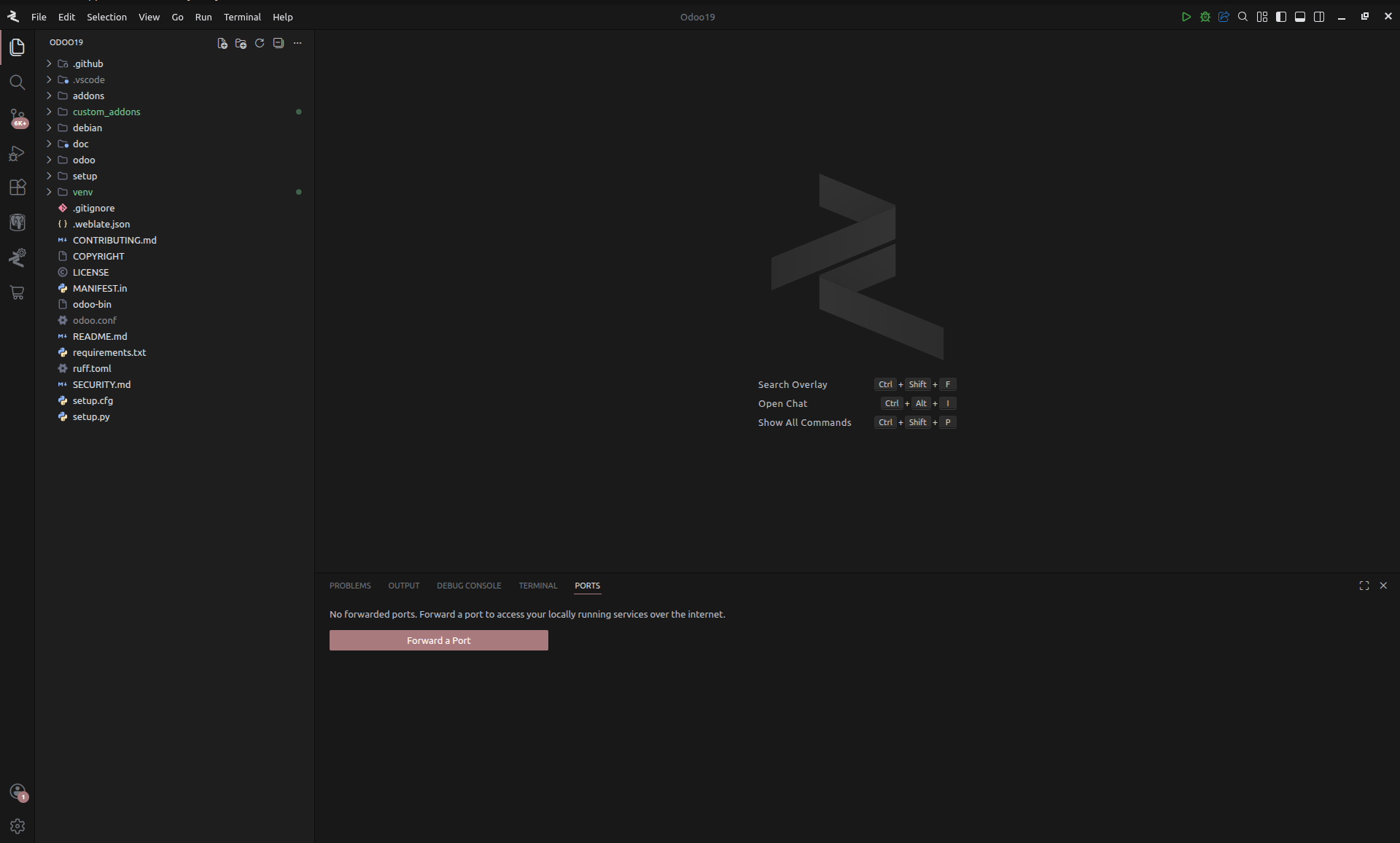
Located in the primary bottom panel, the PORTS tab serves as the central management hub for active tunnels.
- Initialization: Select the Forward a Port button to begin.
- Port Assignment: Input the target local port number (default Odoo port is
8069) and confirm. - Forwarded Address: Upon successful initialization, the public URL is generated and displayed in the Forwarded Address column of the registry table.
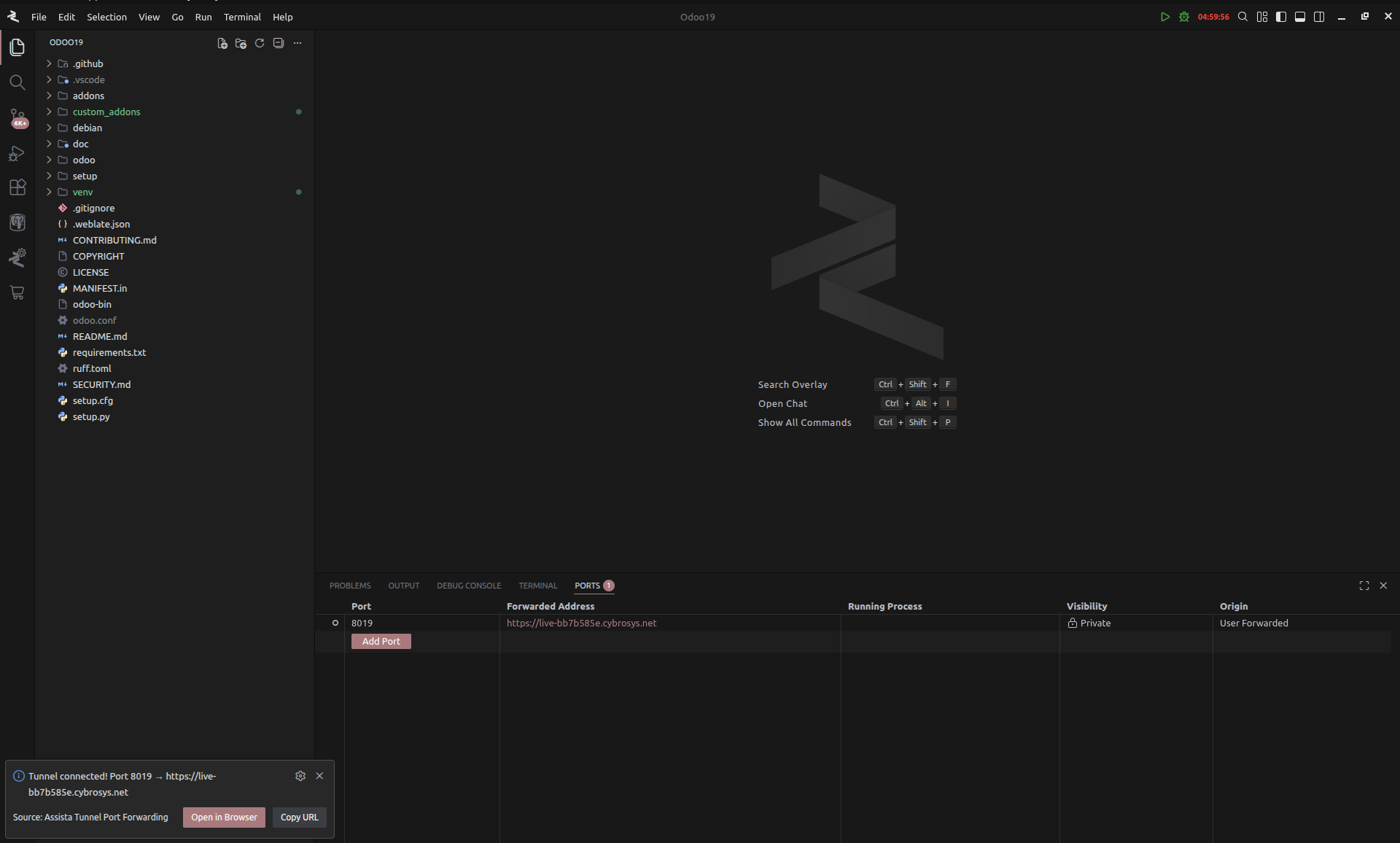
- Session Monitoring: A live countdown timer is displayed within the port record, indicating the remaining session duration.
2. Debugger Management Interface
For immediate session management during active development, port forwarding can be controlled via the debugger tab in the IDE header.
- Quick Initialization: Select the Blue Forward Icon to trigger the port assignment prompt.
- Active Status Indicator: Once a tunnel is established, an active timer appears in the debugger tab, mirroring the session's remaining time.
Operational Parameters & Session Management
To maintain system security and optimize performance, the port forwarding service operates under specific technical constraints.
1. Session Constraints
- Maximum Duration: Port forwarding sessions are limited to a continuous duration of 5 hours.
- Synchronized Monitoring: Remaining session time is tracked and displayed simultaneously across both the PORTS tab and the Debugger interface.
2. Termination Procedures
Active tunnels can be terminated manually through the following methods:
- Registry Termination: Select the 'x' icon within the specific port row on the PORTS tab.
- Debugger Termination: Click directly on the active timer displayed in the debugger tab to disconnect the tunnel immediately.
Application Scenarios
The integrated port forwarding service is optimized for:
- Webhook Integration Testing: Validating external callbacks from third-party services (e.g., Stripe, PayPal, SendGrid).
- Cross-Device Testing: Accessing local Odoo instances from mobile devices or external workstations.
- Remote Stakeholder Demonstrations: Sharing temporary access for UI/UX reviews and feature validation.
Port forwarding in Assista IDE provides a standardized method for exposing local services within a secure, time-bound environment.