

Quick start
Create a module, add files, and write code with snippets, suggestions and inspection in Odoo Helper for PyCharm. Install the plugin first.
On macOS, use Cmd in place of Ctrl in the shortcuts on this page.
What you can do
Create a module
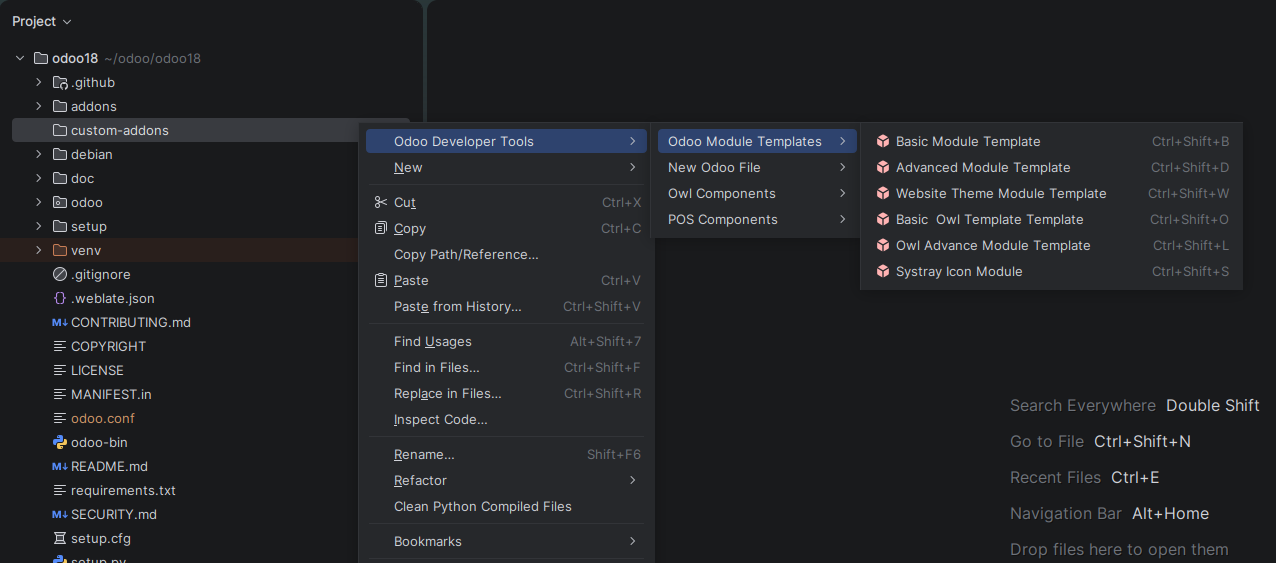
- Right-click a folder that is in the addons path of your
odoo.conf. - Select Odoo Developer Tools > Odoo Module Templates.
- Choose a template.
- Enter the module name and press Enter.
| Template | Use it for |
|---|---|
| Basic Module Template | Prototypes, learning and simple modules. |
| Advanced Module Template | Production modules and team projects. |
| Basic Owl Template | Simple widgets, buttons and UI enhancements. |
| Owl Advance Module Template | Interactive dashboards and client features. |
| Website Theme Module Template | Reusable website themes and design components. |
| Systray Icon Module | Notifications, quick actions and systray utilities. |
The module includes __init__.py, __manifest__.py and, depending on the template, models, views, security and demo data. See Module templates for the generated structure of each template.
Add files
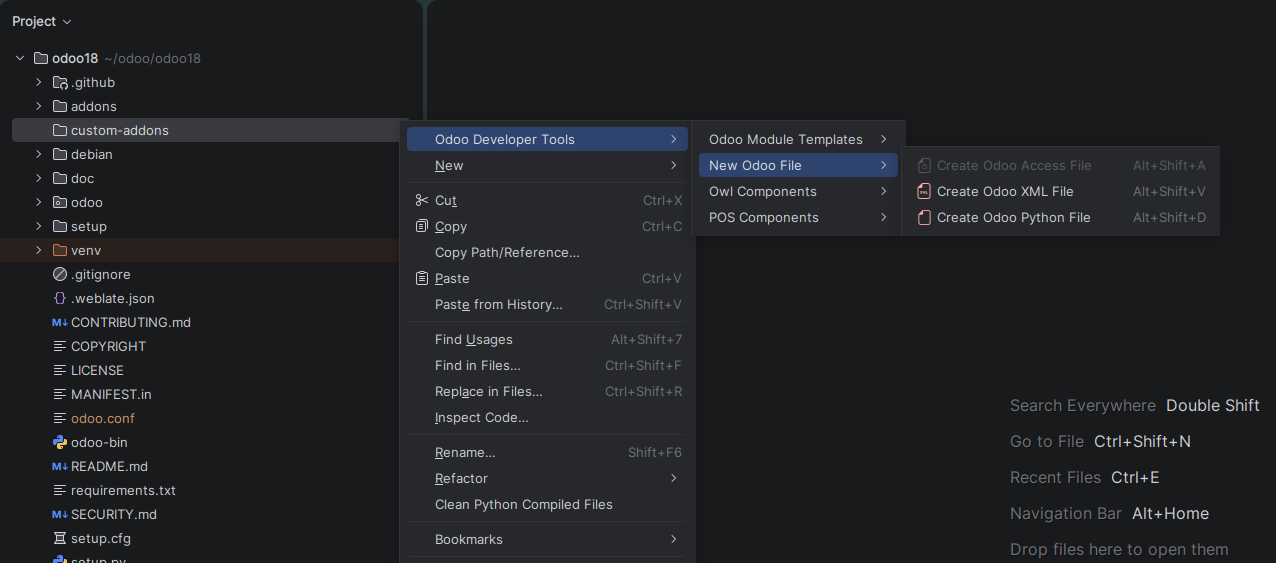
- Right-click a folder in your module.
- Select Odoo Developer Tools > New Odoo File, then Create Odoo Python File, Create Odoo XML File or Create Odoo Access File.
- Enter a file name and choose a template.
| File type | Templates |
|---|---|
| Python | __init__.py, __manifest__.py, Odoo Model, Odoo Controller |
| XML | Empty, Basic, Advanced, Inherit, Report, Security Group, Security Rule, Sequence, Settings, Cron Job |
| CSV | Security access (ir.model.access.csv) |
New files are registered in __init__.py or __manifest__.py for you. See File creator.
Create OWL components
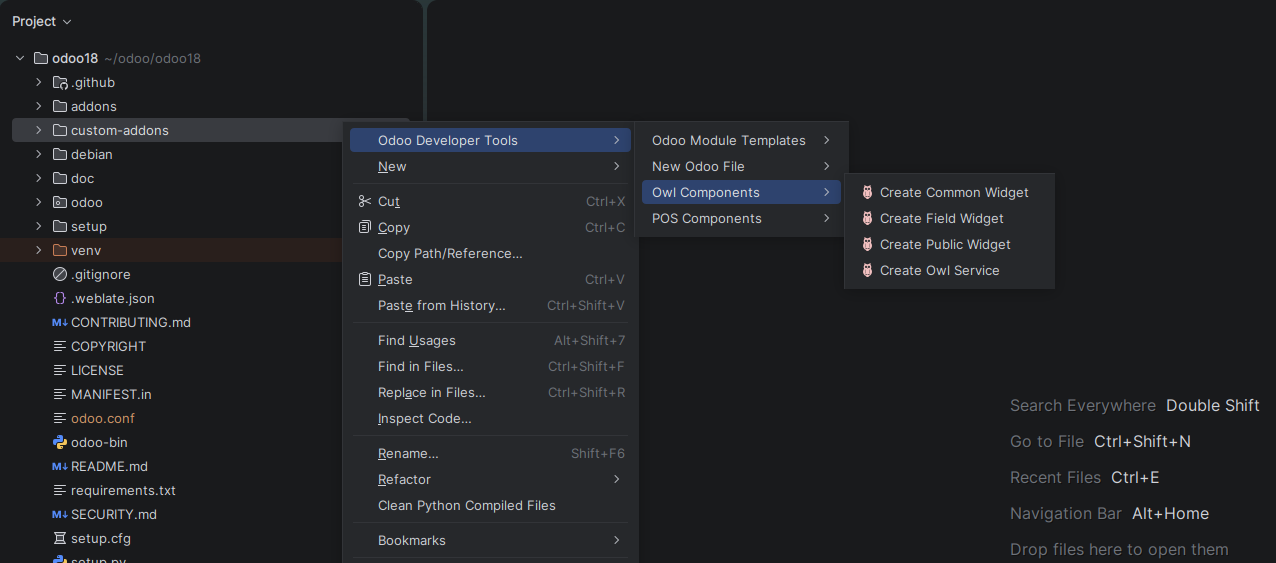
Right-click a valid Odoo module and select Odoo Developer Tools > Owl Components. Choose one of four items:
| Item | Creates |
|---|---|
| Create Common Widget | A common OWL component. |
| Create Field Widget | An OWL component you can use as a field widget. |
| Create Public Widget | An OWL component registered in the public component category, for use in Odoo templates. |
| Create Owl Service | A basic OWL service. |
Extend POS screens
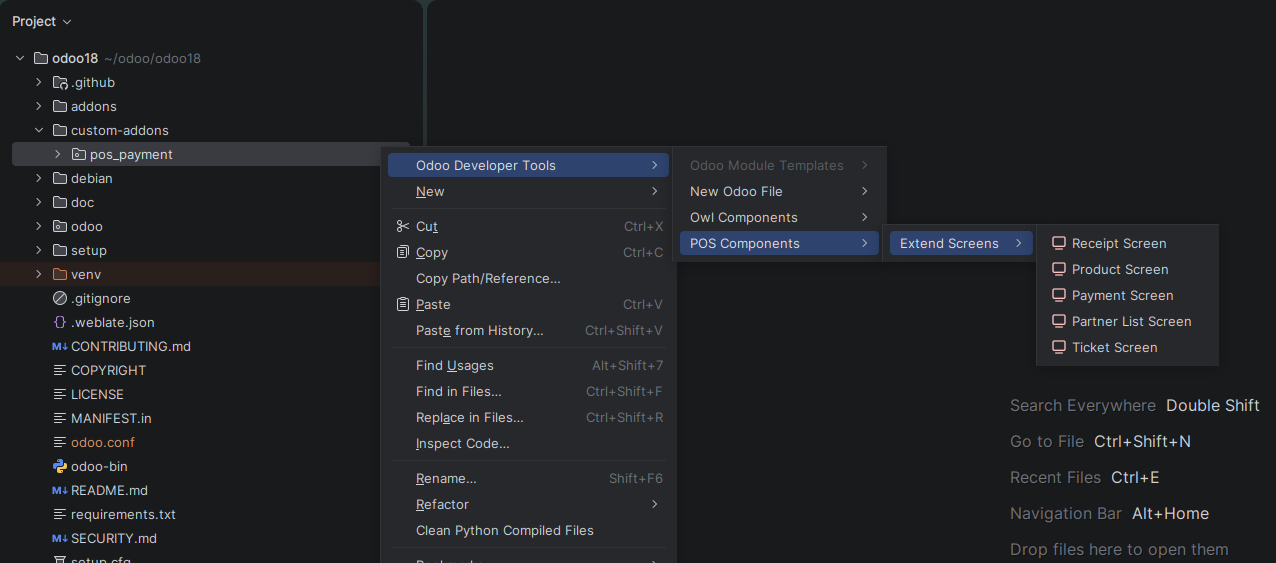
Right-click a valid Odoo module and select Odoo Developer Tools > POS Components > Extend Screens. Choose the screen to extend:
| Screen | Use it to |
|---|---|
| Receipt Screen | Customize the receipt layout and content. |
| Product Screen | Modify product selection and display. |
| Payment Screen | Add or change payment methods and interactions. |
| Partner List Screen | Extend customer management and selection. |
| Ticket Screen | Customize order management and ticket display. |
Write code with assistance
- Type
odooin a Python or XML file to insert a snippet. See Snippets. - Press
Ctrl+Spacefor suggestions of model names, field names, template names, widgets and manifest dependencies. PressTabto accept andEscto dismiss. See Smart suggestions. - Review the inspection warnings in the editor and apply quick fixes. See Code inspection.
Get started: your first module
- Install and verify. Install the plugin, restart PyCharm, let indexing finish, then type
odooin a Python file to check that snippets appear. - Create the module. Right-click your addons folder, choose Odoo Developer Tools > Odoo Module Templates > Basic Module Template, and enter a descriptive name such as
my_first_module. Review the generated models, views, security and manifest files. - Add files. Right-click
models/and create an Odoo Model. Right-clickviews/and create a Basic XML view. The imports and the manifestdataentries are added for you. - Add security. Create an Odoo Access File for access rights, or an XML Security Group and Security Rule for groups and record rules.
- Write code. Use snippets for fields, computed fields, onchange methods and actions. Use suggestions to pick model and field names.
- Check and test. Review inspection warnings and apply quick fixes. Then install the module in Odoo and test it.
- Move on. Try the Advanced, OWL, Theme and Systray templates, and other view types such as search, kanban, calendar and pivot.
Keyboard shortcuts
| Action | Windows and Linux | macOS |
|---|---|---|
| Create Basic Module | Ctrl+Shift+B | Cmd+Shift+B |
| Create Advanced Module | Ctrl+Shift+D | Cmd+Shift+D |
| Create Website Theme Module | Ctrl+Shift+W | Cmd+Shift+W |
| Create Owl Basic Module | Ctrl+Shift+O | Cmd+Shift+O |
| Create Owl Advanced Module | Ctrl+Shift+L | Cmd+Shift+L |
| Create Systray Icon Module | Ctrl+Shift+S | Cmd+Shift+S |
| Create Odoo Python File | Alt+Shift+D | Cmd+Shift+D |
| Create Odoo XML (view) File | Alt+Shift+V | Cmd+Shift+V |
| Create Odoo Access File | Alt+Shift+A | Cmd+Shift+A |
| Open Odoo File Creation Menu | Alt+Shift+F | Cmd+Shift+F |
To change a shortcut, see File creator.
Tips and limits
Module layout
A typical Odoo module keeps each kind of file in its own folder:
module_name/
├── __init__.py
├── __manifest__.py
├── models/       # one file per model, plus __init__.py
├── views/        # XML views, grouped by feature
├── security/     # ir.model.access.csv and security.xml
├── data/         # data and demo XML
├── controllers/
└── static/
    ├── description/icon.png
    └── src/      # js, scss and xml assets
Naming
- Use lowercase names with underscores for Python files, such as
sale_order.py, and one file per model or closely related group of models. - Use descriptive names for XML files, grouped by function, such as
sale_views.xml. - Keep security files separate and use the standard names
ir.model.access.csvandsecurity.xml.
Working habits
- Start from the Basic module to learn the structure, then move to the Advanced and OWL templates.
- Create model files in
models/, controllers incontrollers/and view files inviews/. The file creator only offers templates that suit the folder you pick. - Use snippets for common patterns instead of typing them from scratch, and use suggestions to discover the models and fields that exist.
- Fix inspection warnings as they appear, and review generated code before you commit it.
- Add docstrings to models and methods, and write tests for your module.
- Odoo conventions for module layout and naming are in the Odoo coding guidelines.