

Module templates
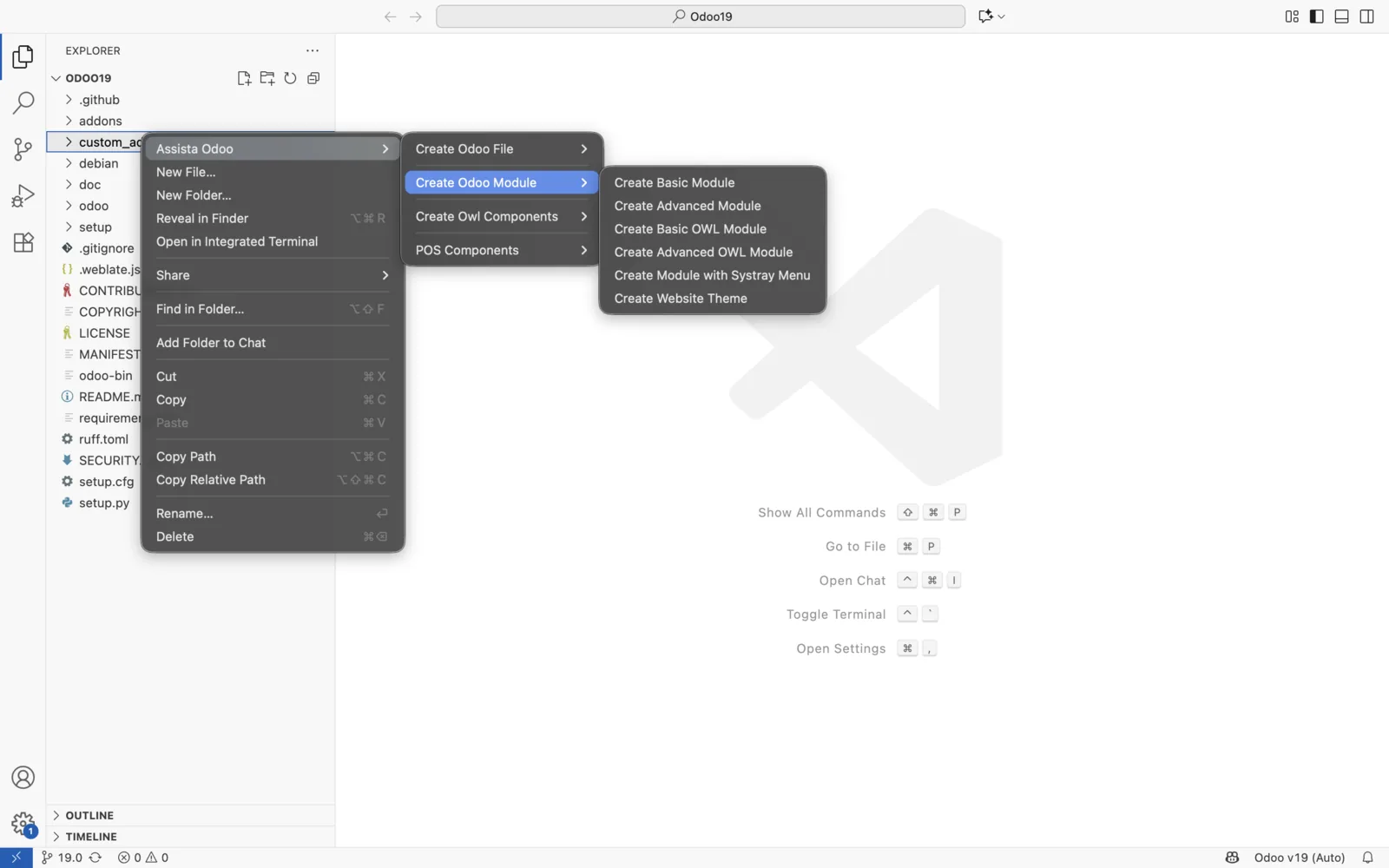
Create a ready-to-use Odoo module from the Explorer. Choose a template, enter a technical name, and the extension writes the module for your Odoo version and opens its manifest.
What you can do
| Template | Contents | depends |
|---|---|---|
| Create Basic Module | Manifest, a model, its views and the access file. | base |
| Create Advanced Module | The basic module plus sequence data, cron data and demo data. | base |
| Create Basic OWL Module | The basic module plus an OWL client action (JavaScript and XML template). | base, web |
| Create Advanced OWL Module | The advanced module plus an OWL dashboard with charts, fed by a JSON controller. Odoo 20 uses Chart.js through web.chartjs_lib. Odoo 18 and 19 use Google Charts. | base, mail, contacts |
| Create Module with Systray Menu | A systray item (OWL component and template). | base, web |
| Create Website Theme | Layout, header and footer templates for website. | website |
The generated code follows your Odoo version. The manifest version is 18.0.1.0.0, 19.0.1.0.0 or 20.0.1.0.0, and the access file is ir.model.access.csv on 18 and 19 or ir.access.csv on 20.
Get started
- Right-click the folder that will hold the module, for example your addons folder.
- Select Assista Odoo > Create Odoo Module, then choose a template.
- Enter a technical name and press Enter.
The name accepts lowercase letters and _ only. Digits, dots and spaces are rejected. If a folder with that name already exists, the extension shows an error and creates nothing.
The model takes its name from the module name: library_book creates a model library.book, a class LibraryBook and a file models/library_book.py. The manifest name is the module name in title case, such as Library Book.
What each template creates
Examples use a module named my_module. The access file is ir.model.access.csv on Odoo 18 and 19.
Basic module
my_module
├── __init__.py
├── __manifest__.py
├── models
│   ├── __init__.py
│   └── my_module.py
├── security
│   └── ir.access.csv           # ir.model.access.csv on Odoo 18 and 19
└── views
    └── my_module_views.xml
The model my.module has name, state (draft, confirmed, done), description, amount and active fields. It overrides create, write and unlink, and has an action_do_something method that a form header button calls. The views file has list, form, kanban and search views, a window action and a menu. The access file gives internal users full access.
Advanced module
Adds data/ir_sequence_data.xml, data/ir_cron_data.xml and demo/my_module_data.xml to the basic layout.
my_module
├── data
│   ├── ir_cron_data.xml
│   └── ir_sequence_data.xml
├── demo
│   └── my_module_data.xml
├── models
├── security
└── views
The model adds a date field, and create takes name from the sequence. The views add calendar and pivot views. The cron record calls a cron_sample_method placeholder every day, and the demo file adds two sample records.
Basic OWL module
Adds an OWL client action to the basic layout. The form button opens it.
my_module
├── models
├── security
├── static
│   └── src
│       ├── js
│       │   └── client_action.js
│       └── xml
│           └── client_action.xml
└── views
The manifest registers both files in web.assets_backend. The client action shows a welcome screen with a button that raises a notification.
Advanced OWL module
Adds a controller, an OWL dashboard, data and demo files to the advanced layout.
my_module
├── controllers
│   ├── __init__.py
│   └── main.py
├── data
├── demo
├── models
├── security
├── static
│   └── src
│       ├── js
│       │   └── client_action.js
│       ├── scss              # Odoo 20 only
│       │   └── client_action.scss
│       └── xml
│           └── client_action.xml
└── views
The model inherits mail.thread and adds partner_id, company_id and a user field. The controller serves /my_module/chart_data with total records and amounts per partner for the dashboard charts. On Odoo 20, the dashboard offers pie, doughnut, bar and line charts with a date filter. The views file adds a menu that opens the client action.
Systray module
my_module
├── __init__.py
├── __manifest__.py
└── static
    └── src
        ├── js
        │   └── systray.js
        └── xml
            └── systray_templates.xml
The component adds a button to the systray with a star icon. Selecting it shows a notification. The manifest registers both files in web.assets_backend.
Website theme
my_module
├── __init__.py
├── __manifest__.py
└── views
    ├── footer_template_views.xml
    ├── header_template_views.xml
    └── layout_template_views.xml
The layout file replaces the homepage content, the header file replaces the website header with a title and Home, About and Contact links, and the footer file replaces the footer. The manifest category is Theme, and it declares empty web._assets_primary_variables and web.assets_frontend bundles for your SCSS and JavaScript.
Tips and limits
- Check the Odoo version in the status bar before you create a module. Click it to change the version.
- The names of the generated files come from the module name you enter.
- The website theme and systray templates have no model, so they have no access file.
- Placeholder code such as
action_do_somethingandcron_sample_methoddoes nothing yet. Replace it with your own logic.